Team & Permissions
Team & Permissions
Section titled “Team & Permissions”CryptaCount’s role-based access control provides granular permissions across three role tiers plus 42 workspace-level permissions, designed for the workflows of accounting practices and audit teams.
Team Management
Section titled “Team Management”Navigate to Team in the sidebar (visible only to Owner and Manager roles). From here you can invite members, assign roles, and manage access.
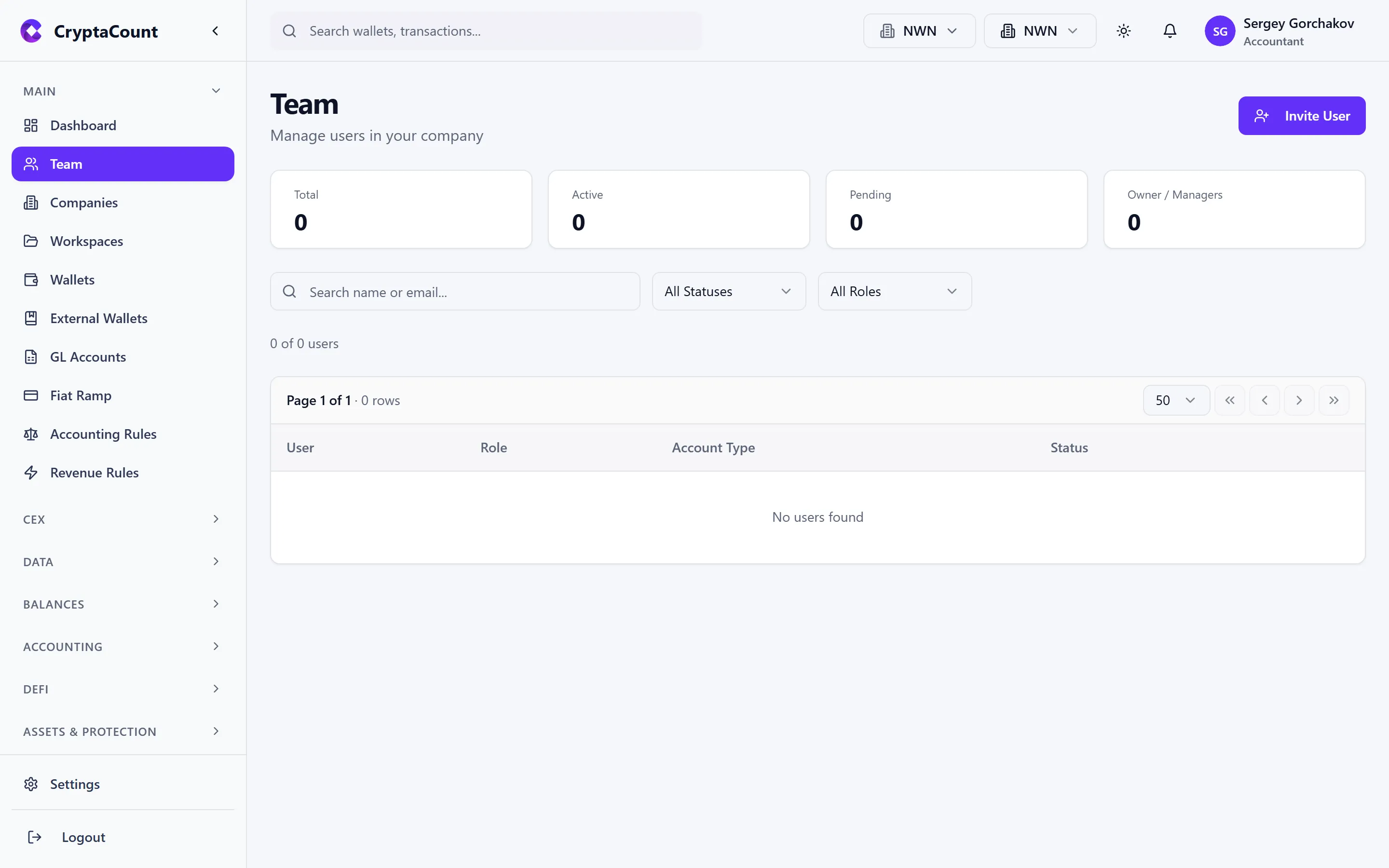
Click Invite Member, enter the person’s email address, and assign their roles. They’ll receive an invitation email with a link to join.
Role System
Section titled “Role System”CryptaCount uses a three-tier role system. Each tier controls a different dimension of access:
Tier 1: Platform Role (Staff Only)
Section titled “Tier 1: Platform Role (Staff Only)”System-level access for platform operations. Most users don’t have a platform role — these are for CryptaCount staff only.
Tier 2: Company Role
Section titled “Tier 2: Company Role”Permissions within a specific company:
| Role | Can do |
|---|---|
| OWNER | Everything — billing, deletion, all settings, ownership transfer |
| MANAGER | Manage workspaces, team members, settings. Cannot delete company or manage billing. |
| MEMBER | Work with data — transactions, reports, assets. Cannot invite team or change settings. |
| VIEWER | Read-only access to all company data |
Tier 3: Workspace Role
Section titled “Tier 3: Workspace Role”Permissions within a specific workspace:
| Role | Can do |
|---|---|
| OWNER | Everything — workspace deletion, ownership transfer |
| MANAGER | Manage wallets, team, integrations, settings |
| MEMBER | Work with transactions, reports, assets, journal entries |
| VIEWER | Read-only access to all workspace data |
Granular Workspace Permissions
Section titled “Granular Workspace Permissions”Beyond workspace roles, CryptaCount supports 42 granular permissions that provide fine-grained control over specific actions. Permissions cover these resource types:
| Resource | Available Permissions |
|---|---|
| workspace | view, edit, delete |
| users | view, invite, edit, delete |
| wallets | view, create, edit, delete, sync |
| transactions | view, create, edit, delete, categorize |
| accounts | view, create, edit, delete |
| journals | view, create, post, reverse |
| reports | view, generate, export |
| settings | view, edit |
| integrations | view, create, edit, delete |
| api_keys | view, create, delete |
| audit | view |
| rules | view, create, edit, delete |
| assets | view, create, edit, delete |
These permissions can be assigned individually to workspace members, allowing you to create custom access profiles. For example, a junior accountant might have transactions:view, transactions:categorize, and reports:view but not journals:post or settings:edit.
Account Types
Section titled “Account Types”Set during registration, the account type determines the user’s primary workflow:
| Account Type | Purpose |
|---|---|
| Business | Companies managing their own crypto accounting |
| Practice | Audit firms and accounting practices managing client books |
| Tax Adviser | Tax-focused advisory work |
| Individual | Solo users managing personal crypto |
Practice Mode
Section titled “Practice Mode”Practice users (audit firms, accounting practices) have a dedicated portal for managing client relationships:
- Practice → Clients — Manage client companies and workspaces
- Practice → Billing — Practice-specific billing (separate from standard billing)
- Practice → Shared — View workspaces shared with the practice
Practice users can access client workspaces without the client incurring additional charges (“no double billing” principle).
Workspace Sharing for External Access
Section titled “Workspace Sharing for External Access”When a business grants access to an external party (auditor, accountant, regulator):
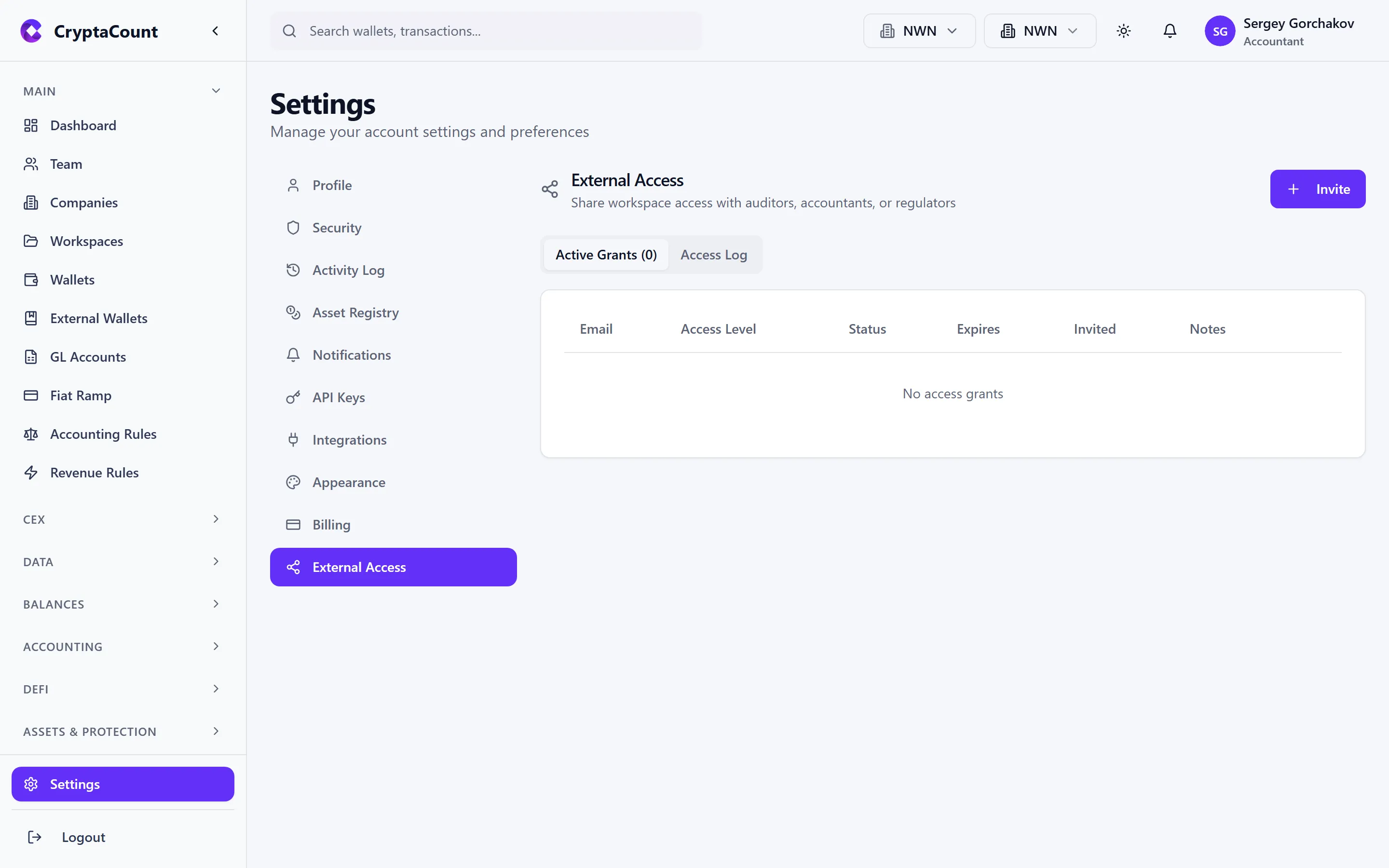
- Navigate to Settings → External Access
- Invite the external party by email
- Assign appropriate roles and granular permissions
- The external party sees the shared workspace alongside their own workspaces
How Roles Combine
Section titled “How Roles Combine”A team member’s effective permissions are the intersection of all applicable role tiers:
-
Jane has Company Role: OWNER, Workspace Role: MANAGER on “DeFi Ops” and VIEWER on “Treasury”
- Jane can fully manage the DeFi Ops workspace but only view Treasury data
-
Bob has Company Role: VIEWER
- Bob has read-only access to everything in the company, regardless of workspace roles