

Integrations Overview
CryptaCount integrates with accounting platforms and supports centralized exchange (CEX) connections for trade data import. Manage integrations under Settings → Integrations.
Accounting Platform Connections
Section titled “Accounting Platform Connections”CryptaCount connects to accounting platforms for both sign-in and data synchronization:
| Provider | Sign-In | Data Sync |
|---|---|---|
| ✓ | — | |
| Microsoft | ✓ | — |
| Xero | ✓ | ✓ Accounting data sync |
| Intuit (QuickBooks) | ✓ | ✓ Accounting data sync |
| Zoho | ✓ | ✓ Accounting data sync |
Connecting an Accounting Platform
Section titled “Connecting an Accounting Platform”- Navigate to Settings → Integrations
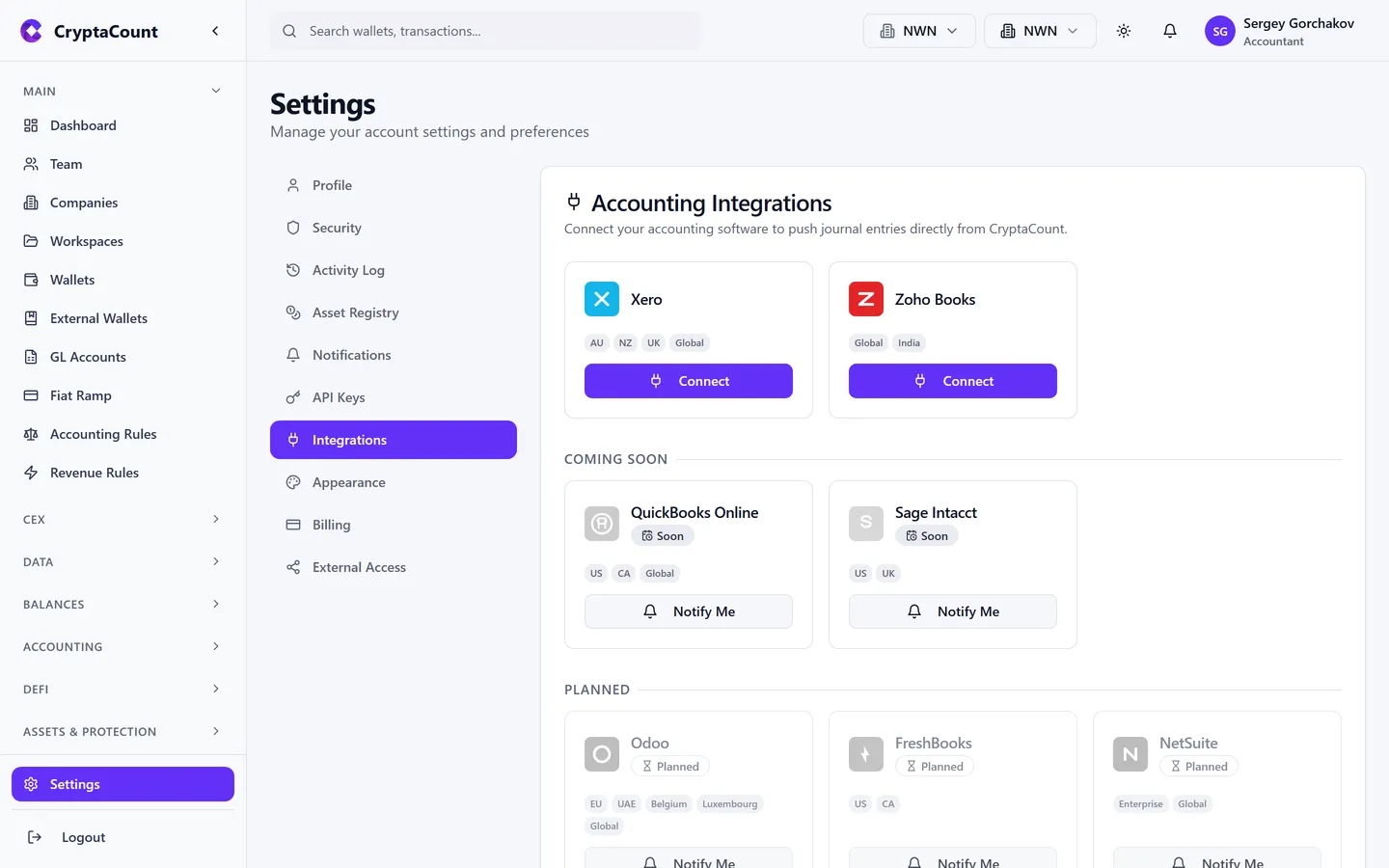
- Click Connect next to the desired platform
- You’ll be redirected to the platform’s authorization screen
- Authorize CryptaCount to access your accounting data
- Select which organization/company to connect (if applicable)
- Done — the integration is active
What Accounting Integrations Do
Section titled “What Accounting Integrations Do”Once connected, you can:
- Push journal entries — Send generated journal entries directly to your general ledger
- Sync chart of accounts — Import your existing chart of accounts
- Reconcile — Compare CryptaCount’s data against your existing general ledger
- Disconnect — Revoke access without deleting data
Zoho Export Support
Section titled “Zoho Export Support”For Zoho Books users, dedicated export functionality under Exports → Zoho provides:
- CSV exports formatted for Zoho Books import
- Account mapping between CryptaCount and Zoho chart of accounts
CEX Connections
Section titled “CEX Connections”Centralized exchange connections under CEX in the sidebar import trade data from major exchanges:
| Sidebar Label | Purpose |
|---|---|
| CEX | CEX account management — connect and manage exchange connections |
| CEX Transactions | View CEX transactions — trades, deposits, withdrawals |
| CEX Import | Import CEX data — via API, CSV, XLS, PDF, or generic import |
| CEX GL Mappings | Map CEX transaction types to GL accounts |
| CEX Transfer Matching | Match CEX transfers with on-chain transactions |
Setting Up a CEX Connection
Section titled “Setting Up a CEX Connection”- Go to CEX in the sidebar
- Click Add Exchange and select your exchange
- API connection: Generate a read-only API key on the exchange and enter it in CryptaCount
- CSV import: Upload trade history exports from the exchange
- Start sync
CEX Import Options
Section titled “CEX Import Options”The import tool supports multiple methods:
- Exchange-specific API — Direct integration per exchange
- Exchange-specific CSV — Pre-formatted CSV templates per exchange
- Generic CSV — Flexible CSV import with column mapping
- XLS import — Excel file import
- PDF import — Statement PDF parsing
- Preview — Review imported data before committing
CEX GL Mappings
Section titled “CEX GL Mappings”Configure under CEX GL Mappings how CEX transactions map to your chart of accounts:
- Set default GL accounts per transaction type
- Override mappings for specific exchanges
- Automatically post CEX transactions as journal entries
Fiat Ramp Tracking
Section titled “Fiat Ramp Tracking”Fiat on/off ramp tracking under Fiat Ramp in the sidebar:
- Track fiat deposits and withdrawals through crypto exchanges
- Manual entry for OTC transactions
- Match unreconciled fiat movements with on-chain transactions
Disconnecting
Section titled “Disconnecting”To disconnect an integration, navigate to Settings → Integrations, click the connected platform, and select Disconnect. This revokes CryptaCount’s access token. No data is deleted from either platform.
Still need help?
Can't find what you're looking for? Our support team is here for you.
Evaluating CryptaCount for your firm? See pricing · Book a demo