Settings & Preferences
The Settings area provides 11 tabs for configuring your profile, workspace, appearance, and connected services. Additional workspace-level settings are available at dedicated locations.
Settings Tabs
Section titled “Settings Tabs”Navigate to Settings in the sidebar to access the following tabs:
| Tab | Description |
|---|---|
| Profile | Name, email, personal information (default tab) |
| Security | 2FA setup, session management, password |
| Activity Log | User activity history and audit trail |
| Asset Registry | Manage token/coin catalog, spam, classification |
| Notifications | Email notification preferences |
| API Keys | Generate and manage API access keys |
| Integrations | Connections to accounting platforms |
| Appearance | Theme selection, light/dark mode |
| Billing | Subscription, usage, payment (hidden for Practice users) |
| External Access | Workspace sharing with external parties (hidden for Practice users) |
Profile
Section titled “Profile”Under Settings → Profile:
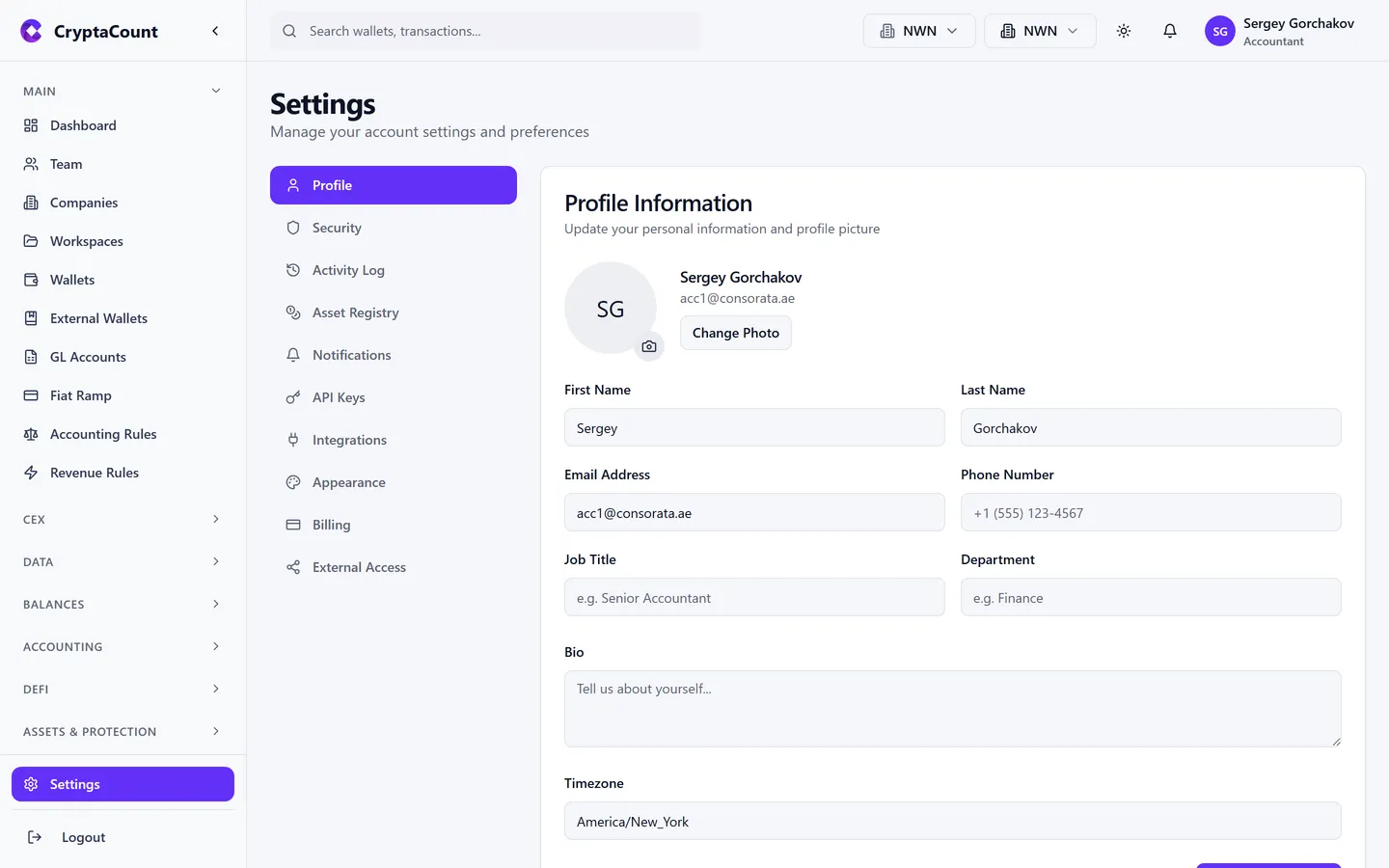
- Personal information — Name and email address
- Avatar — Profile picture
- Your email is used for login and notifications
Security
Section titled “Security”Under Settings → Security:
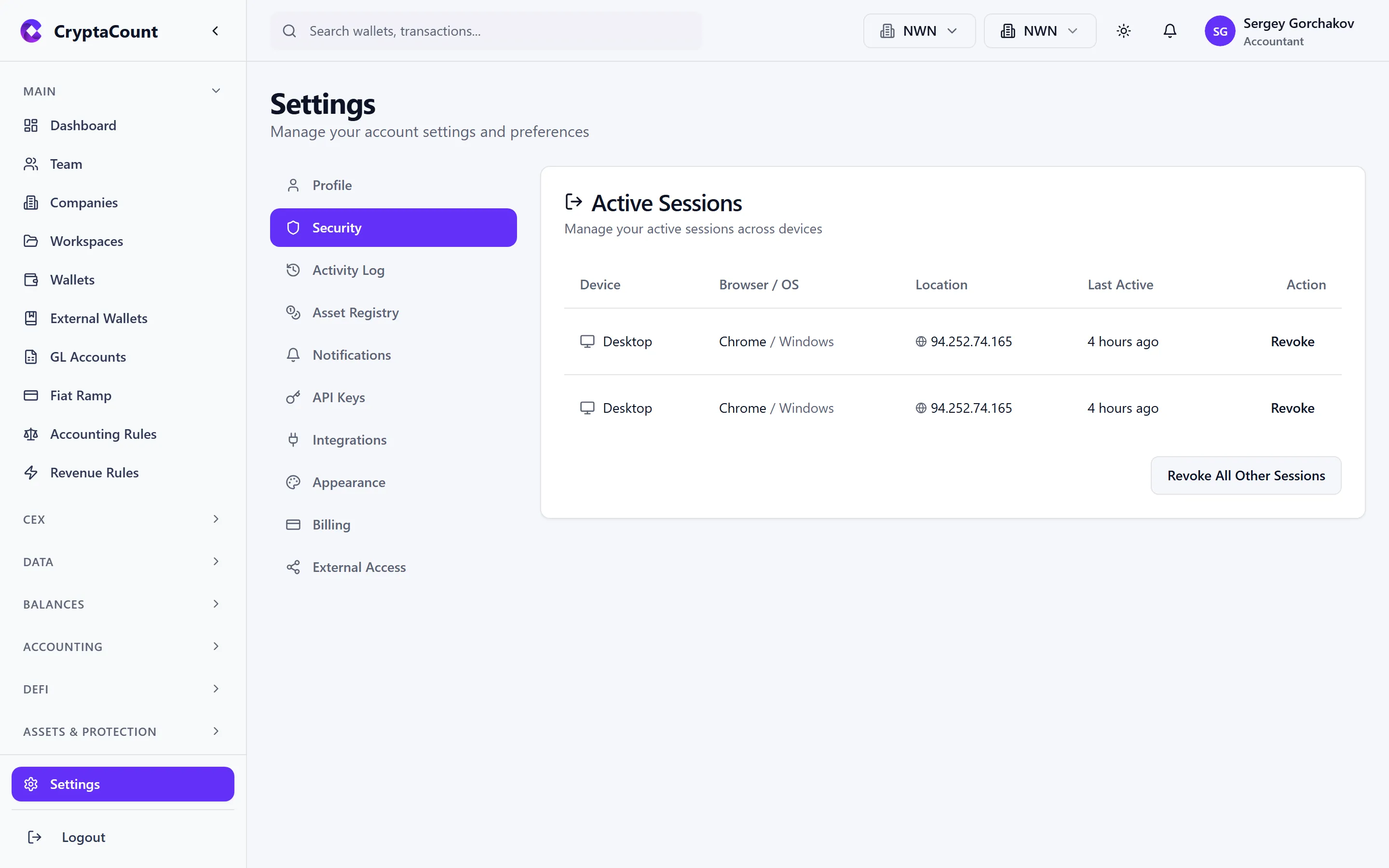
- Two-Factor Authentication (2FA) — TOTP-based 2FA with setup wizard, backup codes
- Active sessions — View all active sessions with device info
- Session management — Revoke individual sessions or all sessions
- Password — Change password (for accounts with password auth)
Activity Log
Section titled “Activity Log”Under Settings → Activity Log:
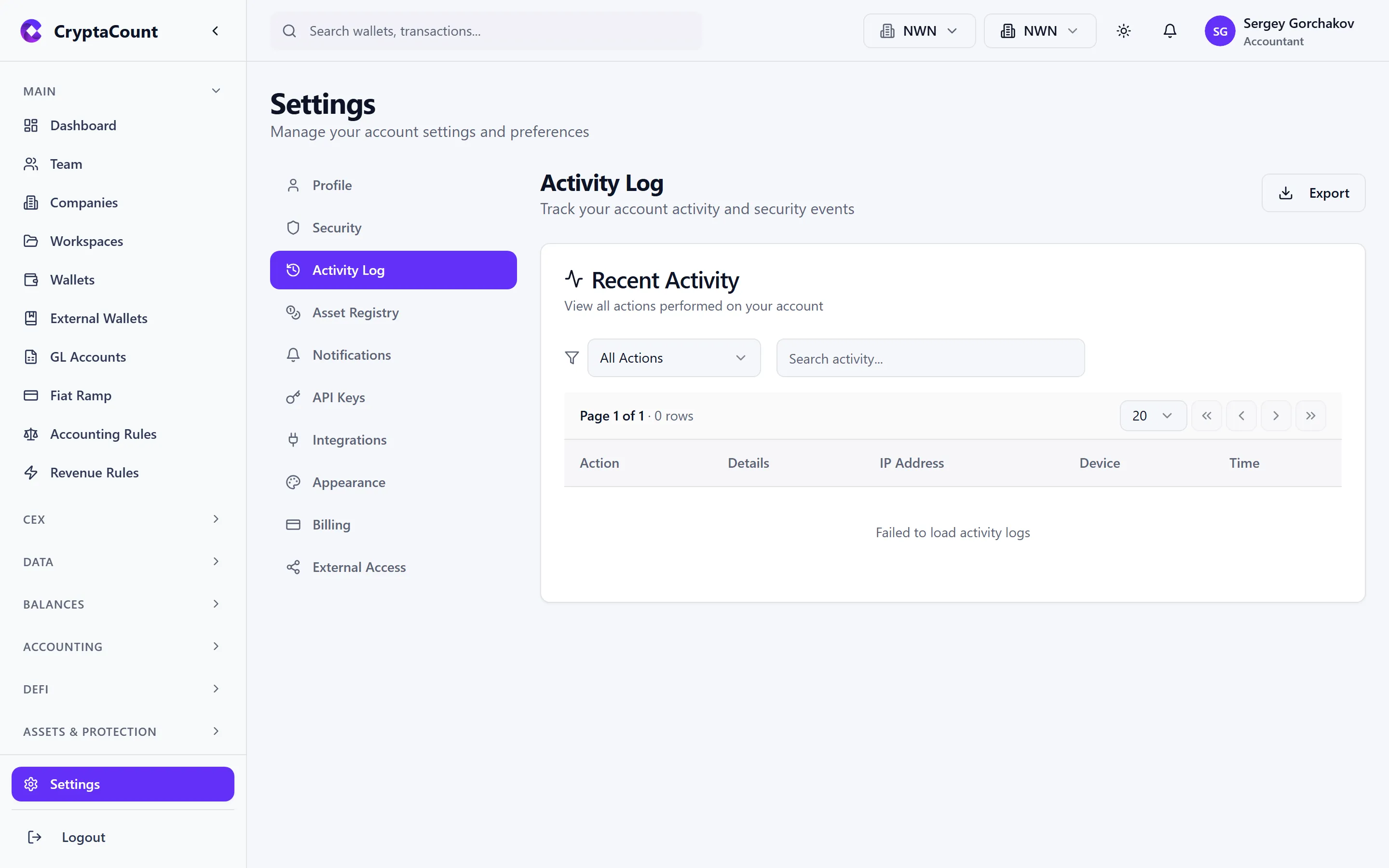
- User activity history organized by workspace and entity
- Authentication events (logins, failed attempts)
- Action-level audit trail
- Statistics and cleanup
Asset Registry
Section titled “Asset Registry”Under Settings → Asset Registry — see Asset Management for full details on the asset registry, spam management, and per-asset configuration.
Notifications
Section titled “Notifications”Under Settings → Notifications:
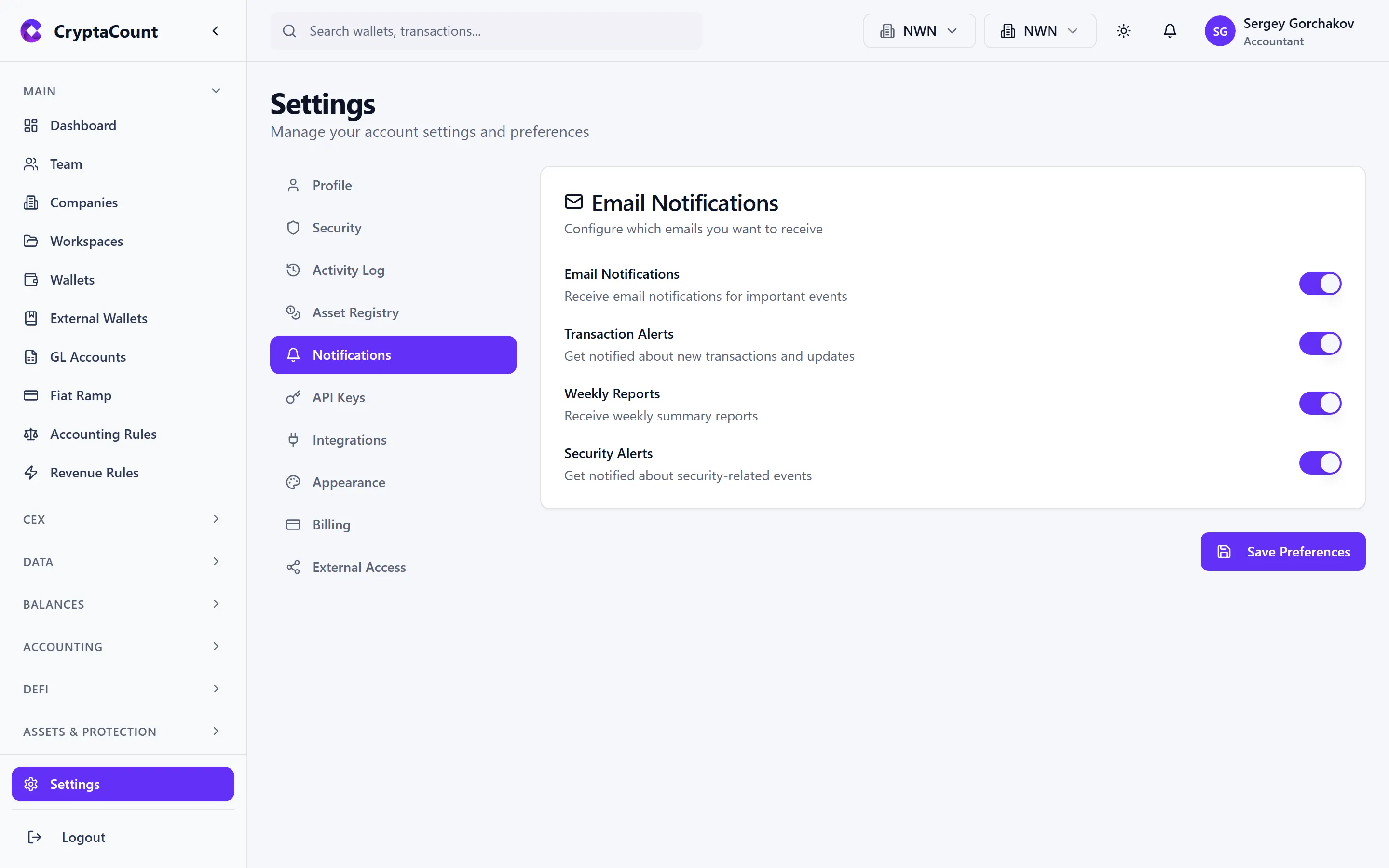
- Control which events trigger email notifications
- Sync completions and errors
- Team invitations
- Billing alerts
- Security events
API Keys
Section titled “API Keys”Under Settings → API Keys:
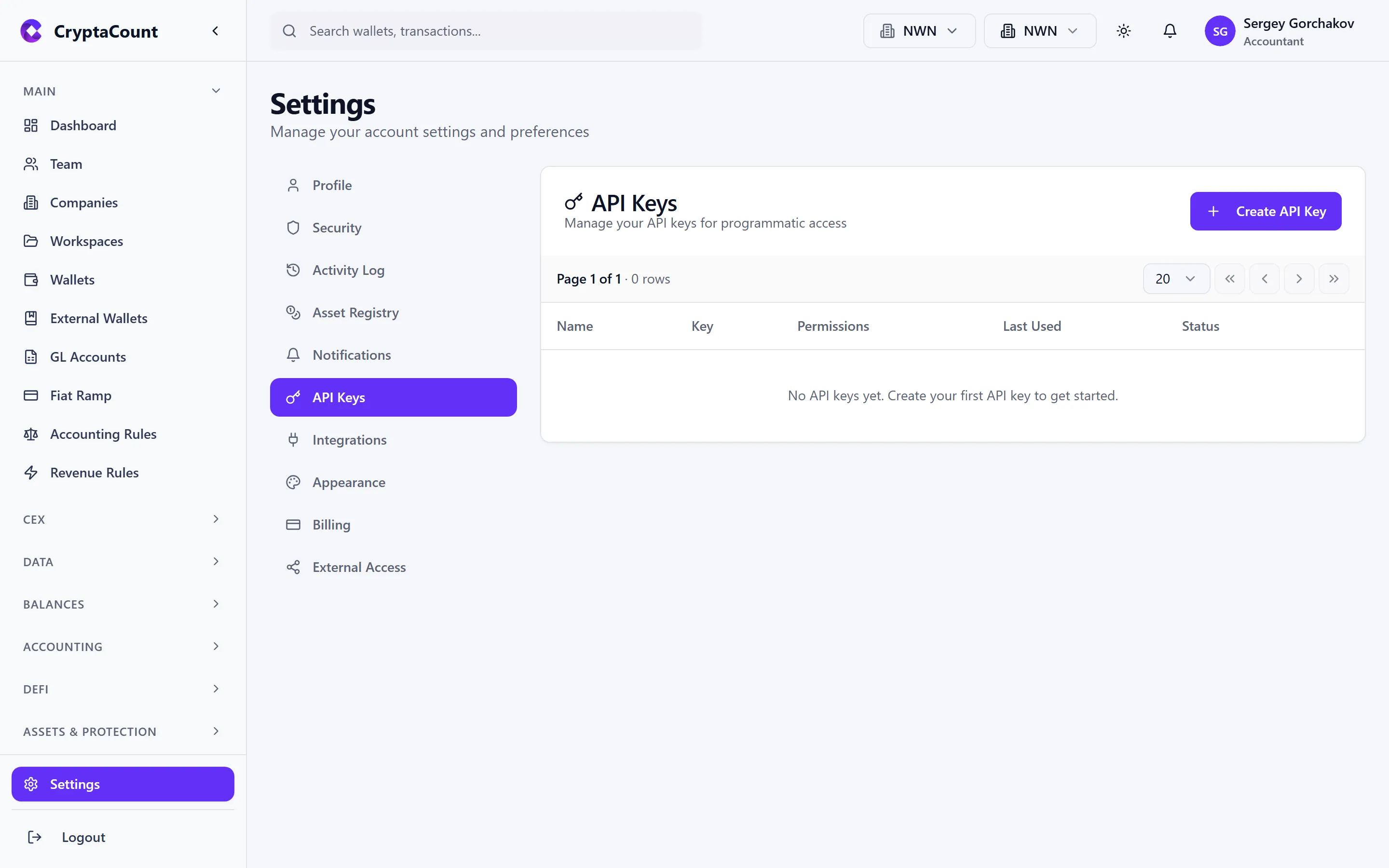
- Generate API keys for programmatic access
- View and revoke existing keys
- Key-level access control
Integrations
Section titled “Integrations”Under Settings → Integrations — see Integrations for full details on connections and accounting platform connectivity.
Appearance
Section titled “Appearance”Under Settings → Appearance:
Themes
Section titled “Themes”CryptaCount includes four themes, each available in light and dark modes:
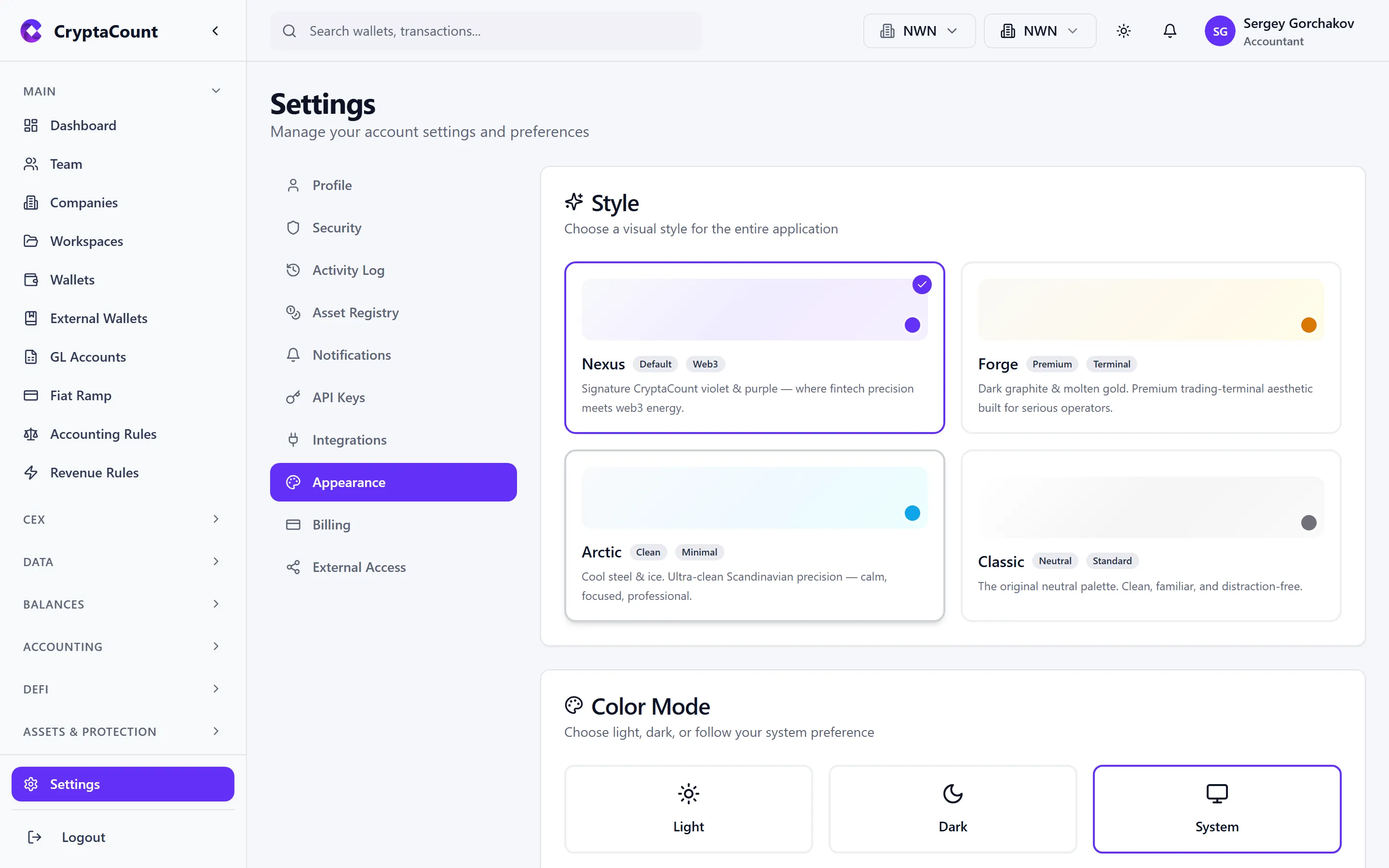
| Theme | Character | Best For |
|---|---|---|
| Nexus | Violet-forward, modern | The default brand experience |
| Forge | Warm, earthy tones | Extended working sessions |
| Arctic | Cool blues and whites | High-contrast readability |
| Classic | Neutral, professional | Conservative/formal environments |
Light / Dark Mode
Section titled “Light / Dark Mode”Toggle between light and dark mode using the sun/moon icon in the top bar, or set to follow your system preference (auto mode). Your choice is saved per-device.
Billing
Section titled “Billing”Under Settings → Billing — see Billing & Plans for full details on subscription management and payment.
External Access
Section titled “External Access”Under Settings → External Access:
- Share workspace access with external parties (auditors, accountants, regulators)
- Manage sharing permissions
- The external party accesses the shared workspace through their own account
Additional Settings
Section titled “Additional Settings”Beyond the 11 settings tabs, additional configuration is available:
| Sidebar Location | Purpose |
|---|---|
| Settings → Workspace Accounting | Workspace-level accounting settings — default cost basis method, base currency, fiscal year |
| Settings → Rules | Accounting rules — define, test, and manage classification and journal rules |
Still need help?
Can't find what you're looking for? Our support team is here for you.
Evaluating CryptaCount for your firm? See pricing · Book a demo