

Revenue Contract Rules
Revenue Contract Rules
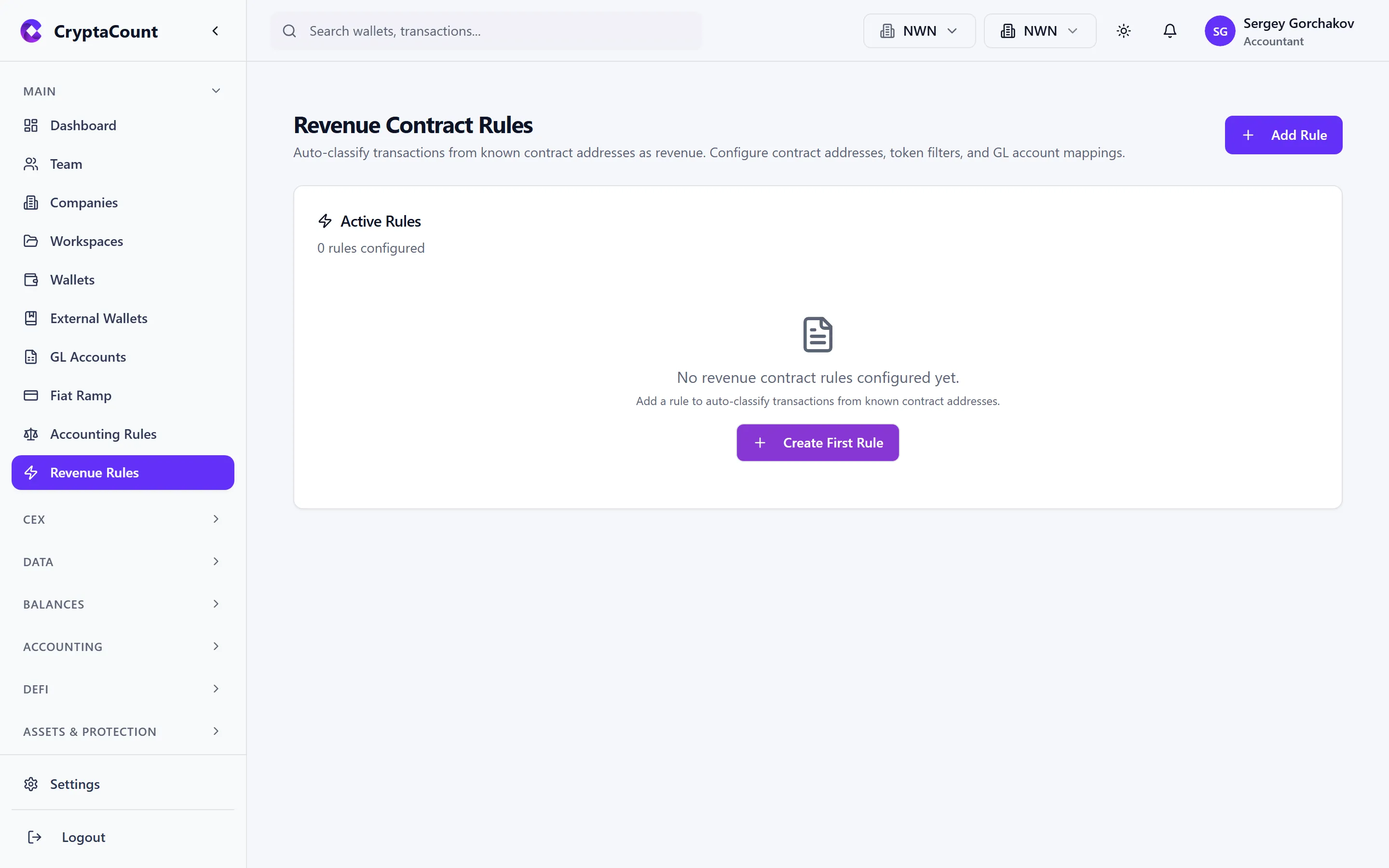
Section titled “Revenue Contract Rules”Revenue contract rules under Revenue Rules in the sidebar define how CryptaCount classifies incoming transactions as revenue. These rules automate the distinction between different revenue streams — staking rewards, validator fees, protocol income, service revenue — so transactions are posted to the correct GL accounts without manual review.
Why Revenue Rules Matter
Section titled “Why Revenue Rules Matter”Crypto entities often receive multiple types of income through the same wallet addresses:
- Staking rewards from validator operations
- Protocol fees from DeFi protocol ownership
- Service revenue from SaaS or infrastructure services paid in crypto
- Airdrops which may or may not constitute revenue depending on jurisdiction
- Yield from lending or liquidity provision
Without rules, all incoming tokens default to a generic classification. Revenue rules apply business logic to distinguish these categories automatically, ensuring:
- Correct GL account posting (different revenue types → different accounts)
- Accurate income statement categorization
- Proper tax treatment (revenue recognition timing may differ by category)
- Audit-ready classification with documented rules
Creating a Rule
Section titled “Creating a Rule”To create a new revenue classification rule:
- Navigate to Revenue Rules
- Click Create Rule
- Configure the rule criteria:
Rule Criteria
Section titled “Rule Criteria”| Field | Description |
|---|---|
| Name | Descriptive label (e.g., “Ethereum Staking Rewards — Acme Digital Holdings”) |
| Asset | Which token or coin this rule applies to (e.g., ETH) |
| Transaction type | Match specific types (STAKING_REWARD, CLAIM_REWARD, etc.) |
| Source address | Match transactions from specific sender addresses (e.g., a known staking contract) |
| Amount range | Optional minimum/maximum amount filter |
| Wallet | Optionally restrict to specific wallets |
Rule Action
Section titled “Rule Action”When a transaction matches the criteria, the rule assigns:
- Revenue classification — The specific revenue category (operating revenue, staking income, protocol fees, etc.)
- GL account — Which ledger account to post to
- Economic intent — INCOME, OPERATIONAL, INVESTMENT, etc.
- Save the rule
Testing Rules
Section titled “Testing Rules”Before activating a rule, test it against your existing transaction data:
- From the rule detail view, click Test Rule
- The system evaluates the rule criteria against all workspace transactions
- Results show:
- Matched transactions — How many existing transactions would be classified by this rule
- Sample matches — A preview of matched transactions with their proposed classification
- Conflicts — Transactions that match this rule AND another existing rule
Test Before Activate
Section titled “Test Before Activate”Testing is strongly recommended before enabling a new rule. A rule with overly broad criteria can misclassify transactions at scale. Review the test results to verify:
- The match count is reasonable (not unexpectedly high or low)
- Sample transactions are genuinely the type you intend to classify
- No conflicts with higher-priority rules
Toggling Rules On/Off
Section titled “Toggling Rules On/Off”Each rule has an active/inactive toggle:
- Active — The rule is applied during classification. New and reclassified transactions will be evaluated against this rule.
- Inactive — The rule exists but is not applied. Use this to temporarily disable a rule without deleting it.
Toggle a rule from the rule list or detail view. Deactivating a rule does not undo classifications already made — it only stops future transactions from being matched.
Rule Priority and Conflicts
Section titled “Rule Priority and Conflicts”When multiple rules could match the same transaction, CryptaCount applies rules in priority order. The first matching rule wins.
Managing Priority
Section titled “Managing Priority”Rules are evaluated in list order. Drag rules to reorder them and set priority. Place more specific rules above broader ones:
- Specific contract + specific asset + specific wallet — Highest priority
- Specific contract + specific asset — Medium priority
- Asset-only or type-only rules — Lower priority, broader catch-all
Conflict Resolution
Section titled “Conflict Resolution”If the test feature shows conflicts between rules, resolve by:
- Narrowing criteria — Add more conditions to the conflicting rule so it doesn’t overlap
- Reordering — Place the more specific rule higher in the priority list
- Merging — Combine overlapping rules into a single rule with the correct classification
Workspace and Global Rules
Section titled “Workspace and Global Rules”Revenue classification operates at two levels:
- Workspace rules — Created by workspace users, apply to one workspace only
- Global rules — Platform-level rules that apply across all workspaces
Workspace rules take precedence over global rules for the same transaction type.
Integration with Accounting Pipeline
Section titled “Integration with Accounting Pipeline”Revenue rules feed into the accounting pipeline:
- Transaction arrives (from wallet sync or CEX import)
- Auto-classification runs, including revenue rule evaluation
- Matched rule assigns the revenue category and GL account
- Journal generation uses the assigned GL account for the credit entry
- Financial reports reflect the classified revenue in the correct income statement line
If no rule matches an income transaction, it falls to the default classification logic or enters the manual review queue.