
Practice Mode (Audit Firms)
Practice Mode (Audit Firms)
Section titled “Practice Mode (Audit Firms)”Practice mode transforms CryptaCount from a single-company tool into a multi-client platform for audit firms, accounting practices, and tax advisory firms. Practice users manage multiple client workspaces from a centralized dashboard with dedicated billing and sharing controls.
Who Uses Practice Mode
Section titled “Who Uses Practice Mode”Practice mode is for organizations that manage crypto accounting or auditing for multiple external clients:
| User Type | Typical Activities |
|---|---|
| Accounting firms | Bookkeeping, period close, financial reporting for clients |
| Audit firms | Reviewing client records, running reconciliations, verifying balances |
| Tax advisory firms | Preparing tax calculations and filings for client entities |
| Managed service providers | Full-service crypto accounting outsourcing |
Account Type
Section titled “Account Type”Practice mode is activated during registration by selecting the Practice account type. This grants access to the practice dashboard and multi-client management features.
Client Management
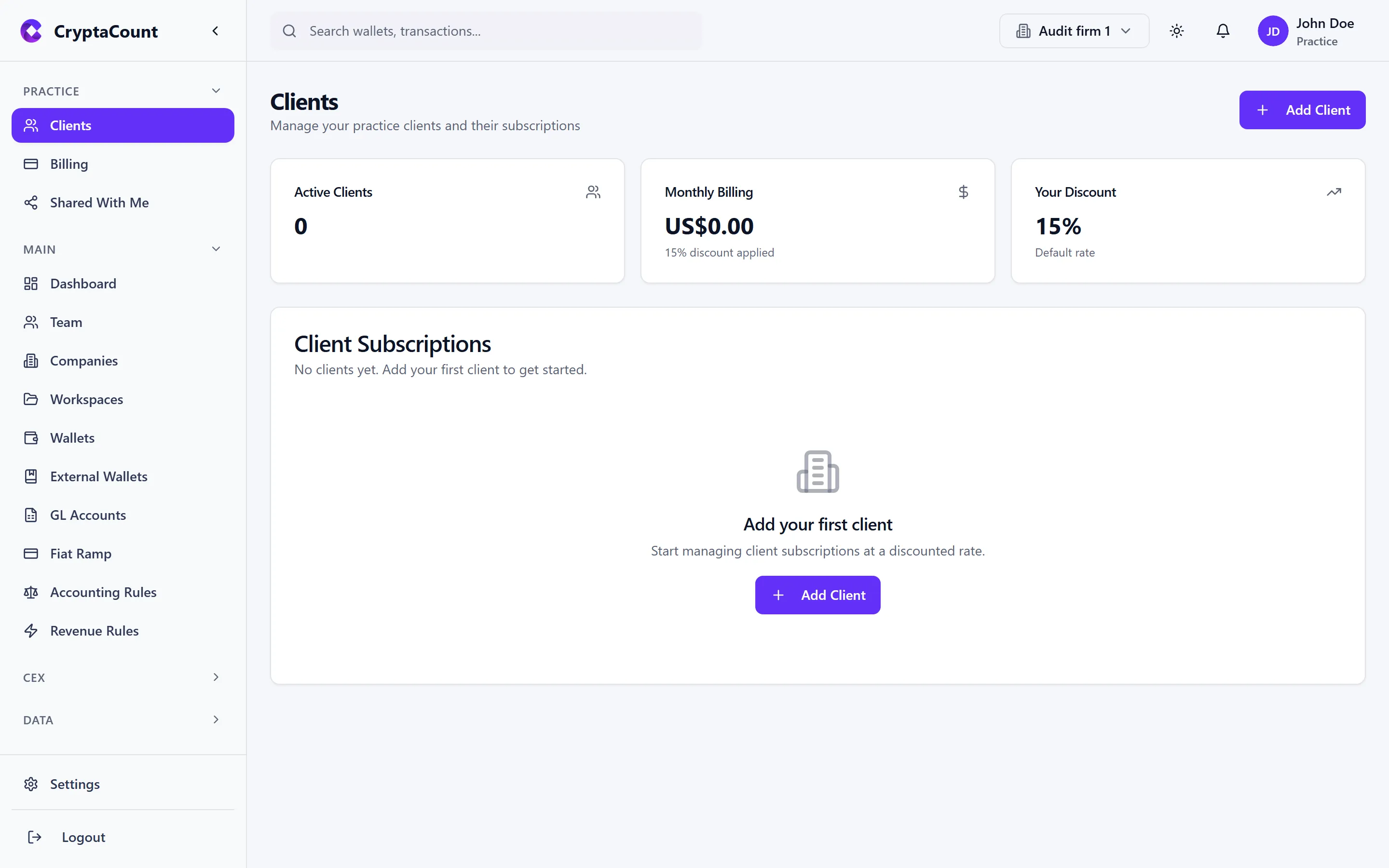
Section titled “Client Management”Manage clients under Practice → Clients.
Adding Clients
Section titled “Adding Clients”There are two paths to adding a client workspace:
Client creates their own account:
- The client registers on CryptaCount with a Business account
- The client navigates to Settings → External Access
- The client invites the practice by email
- The practice accepts the invitation — the client’s workspace appears under Practice → Clients
Practice creates a workspace for the client:
- Navigate to Practice → Clients
- Click New Client
- Enter the client company name and details
- A new workspace is created under the practice’s management
- Optionally invite the client to view their own workspace
Client Dashboard
Section titled “Client Dashboard”The client list shows:
| Column | Description |
|---|---|
| Client name | Company name |
| Workspaces | Number of workspaces managed |
| Status | Active, onboarding, archived |
| Last activity | Most recent action in any workspace |
| Period status | Current accounting period state (open/closing/closed) |
| Subscription | Client’s billing plan |
Switching Between Clients
Section titled “Switching Between Clients”Click any client row to enter their workspace. The sidebar and all features operate within that client’s context. The practice banner at the top confirms which client workspace is active and provides a quick-switch dropdown.
Client Access Levels
Section titled “Client Access Levels”Practice users have configurable access to each client workspace:
| Access Level | Capabilities |
|---|---|
| Full access | All features including settings, user management, and billing |
| Accounting access | Transactions, journals, balances, reports, period close |
| View-only | Read-only access to all data — no modifications |
| Audit access | Read-only plus reconciliation and attestation tools |
Practice Billing
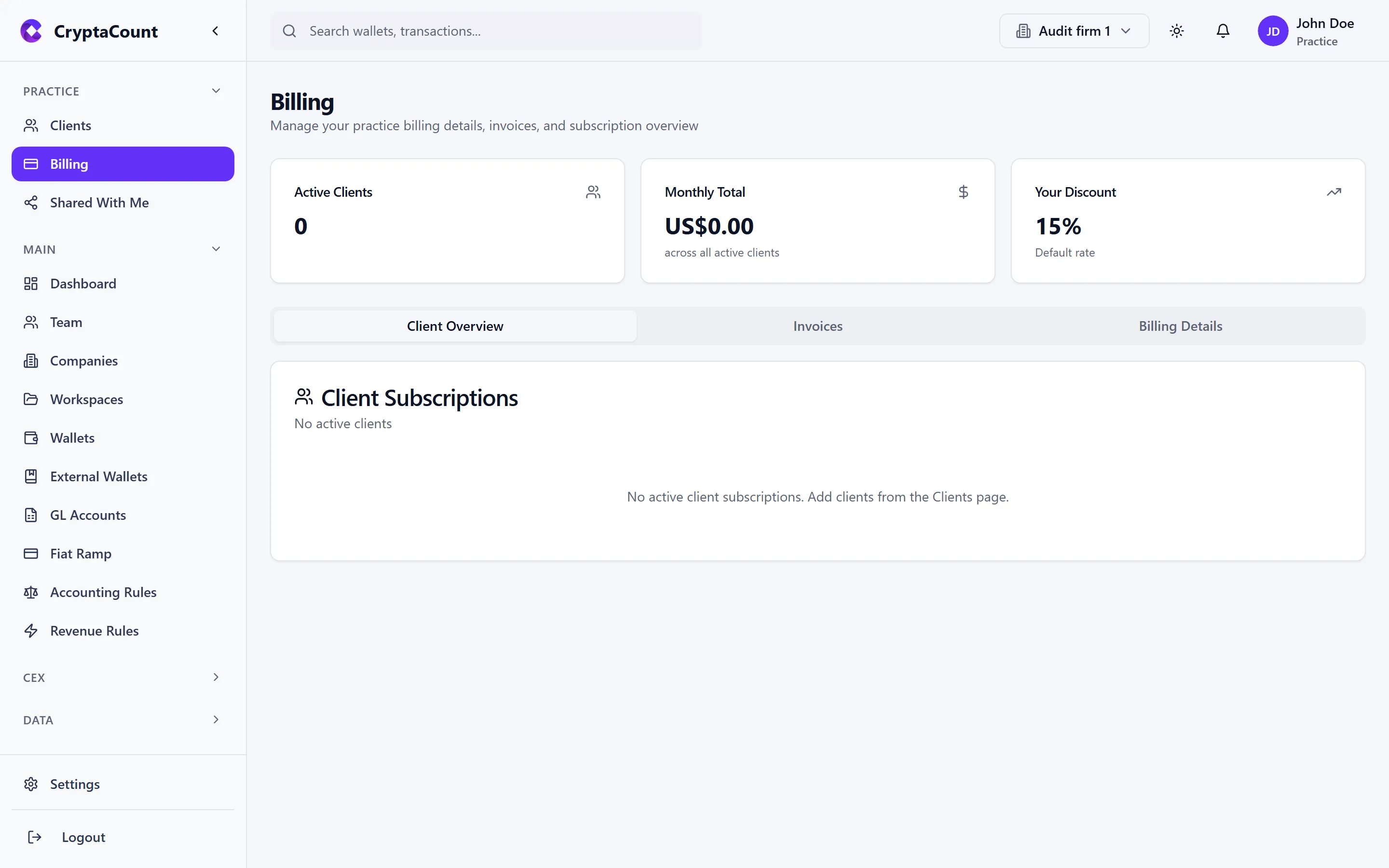
Section titled “Practice Billing”Manage practice-level billing under Practice → Billing.
Billing Model
Section titled “Billing Model”Practice accounts have a different billing structure from standard business accounts:
| Feature | Business Account | Practice Account |
|---|---|---|
| Billing unit | Per workspace | Per client workspace (volume pricing) |
| Plan selection | Self-service | Practice admin assigns plans per client |
| Invoicing | Auto-billing | Consolidated invoice or per-client |
| Payment | Client pays directly | Practice pays for clients (pass-through optional) |
Managing Client Subscriptions
Section titled “Managing Client Subscriptions”- Navigate to Practice → Billing
- View the billing overview:
- Total monthly cost across all clients
- Per-client billing breakdown
- Feature usage by client
- Assign or change plans per client
- View invoices and payment history
Volume Pricing
Section titled “Volume Pricing”Practice accounts qualify for volume discounts based on total managed workspaces:
| Tier | Workspaces | Discount |
|---|---|---|
| Starter | 1–5 | — |
| Growth | 6–20 | 10% |
| Professional | 21–50 | 20% |
| Enterprise | 51+ | Custom |
Pass-Through Billing
Section titled “Pass-Through Billing”Practices can optionally enable pass-through billing, where CryptaCount bills each client directly. The practice retains administrative control but the client sees and pays their own invoice.
Shared Workspaces
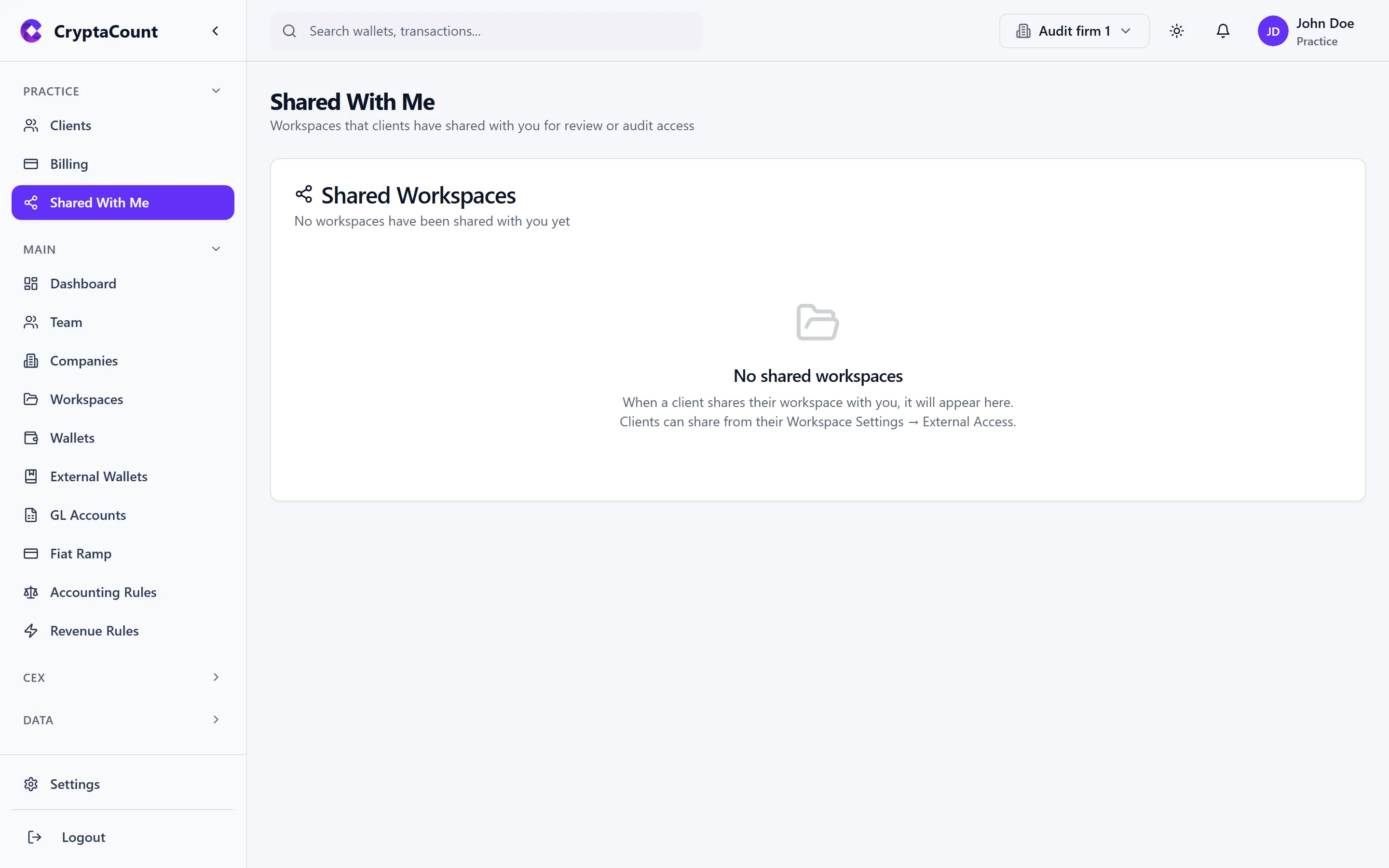
Section titled “Shared Workspaces”View workspaces shared with the practice under Practice → Shared.
How Sharing Works
Section titled “How Sharing Works”When a client shares their workspace with a practice:
- The workspace appears under Practice → Shared
- The practice gains access at the level specified by the client (view-only, accounting, full)
- All actions performed by practice users are logged in the client’s audit trail with the practice user’s identity
- The client can revoke access at any time from Settings → External Access
Shared vs. Managed
Section titled “Shared vs. Managed”| Aspect | Shared Workspace | Managed Workspace |
|---|---|---|
| Owner | Client | Practice |
| Billing | Client pays | Practice pays |
| Access control | Client grants/revokes | Practice controls |
| Workspace creation | Client created | Practice created |
Auditor vs. Accountant Workflow
Section titled “Auditor vs. Accountant Workflow”Practice mode supports two primary workflow patterns:
Accountant Workflow (Ongoing Bookkeeping)
Section titled “Accountant Workflow (Ongoing Bookkeeping)”Typical monthly cycle for an accounting firm managing a client:
- Week 1 — Sync wallets, import CEX transactions, reconcile fiat
- Week 2 — Review and classify transactions, resolve manual review items
- Week 3 — Calculate balances, run impairment tests, create manual adjustments
- Week 4 — Period close workflow, generate financial reports, deliver to client
Example: Acme Digital Holdings outsources monthly bookkeeping to Baker & Associates, a crypto accounting practice. Baker & Associates logs into their practice dashboard, switches to the Acme workspace, runs the monthly close workflow, and delivers the trial balance and income statement by the 15th of each month.
Auditor Workflow (Periodic Audit)
Section titled “Auditor Workflow (Periodic Audit)”Typical engagement for an audit firm:
- Planning — Review client’s accounting policies, assess risk areas
- Fieldwork:
- Run proof of reserves attestation
- Verify address screening results
- Replay reconciliation checks
- Review journal hash chain integrity
- Sample test manual adjustments and their approvals
- Verify period close check results and waivers
- Reporting — Export supporting evidence, document findings
- Follow-up — Track remediation of findings
Audit workflows use view-only or audit access levels to ensure the auditor cannot modify client data.
Separation of Duties
Section titled “Separation of Duties”Practice mode enforces separation:
- Practice users are identified separately from client users in the audit trail
- Practice user actions carry the practice organization’s identity
- Permission changes are logged
- Access grants and revocations are timestamped
Settings for Practice Users
Section titled “Settings for Practice Users”Some settings behave differently for practice accounts:
| Setting | Behavior |
|---|---|
| Billing | Hidden from Settings sidebar — use Practice → Billing instead |
| External Access | Manages which clients have shared their workspace |
| Workspace Accounting | Accessible per-client workspace |
| Profile | Practice user’s own profile |
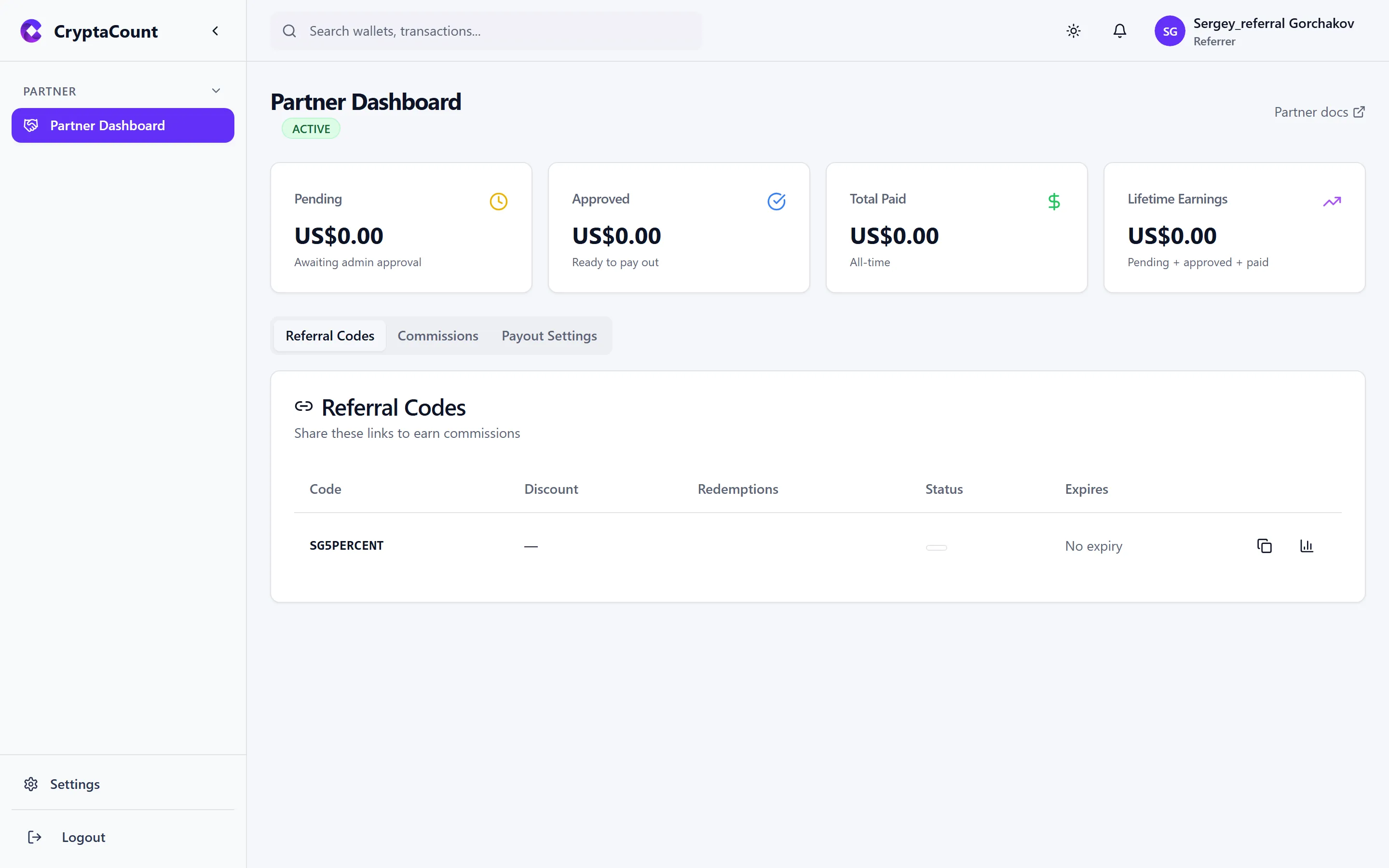
Partner Referral Program
Section titled “Partner Referral Program”Practice accounts have access to a partner referral dashboard for tracking referrals and earning rewards.