

Integrations
Integrations
Section titled “Integrations”CryptaCount integrates with accounting platforms and supports centralized exchange (CEX) connections for trade data import. Manage integrations under Settings → Integrations.
Accounting Platform Connections
Section titled “Accounting Platform Connections”CryptaCount connects to accounting platforms for both sign-in and data synchronization:
| Provider | Sign-In | Data Sync |
|---|---|---|
| ✓ | — | |
| Microsoft | ✓ | — |
| Xero | ✓ | ✓ Accounting data sync |
| Intuit (QuickBooks) | ✓ | ✓ Accounting data sync |
| Zoho | ✓ | ✓ Accounting data sync |
Connecting an Accounting Platform
Section titled “Connecting an Accounting Platform”- Navigate to Settings → Integrations
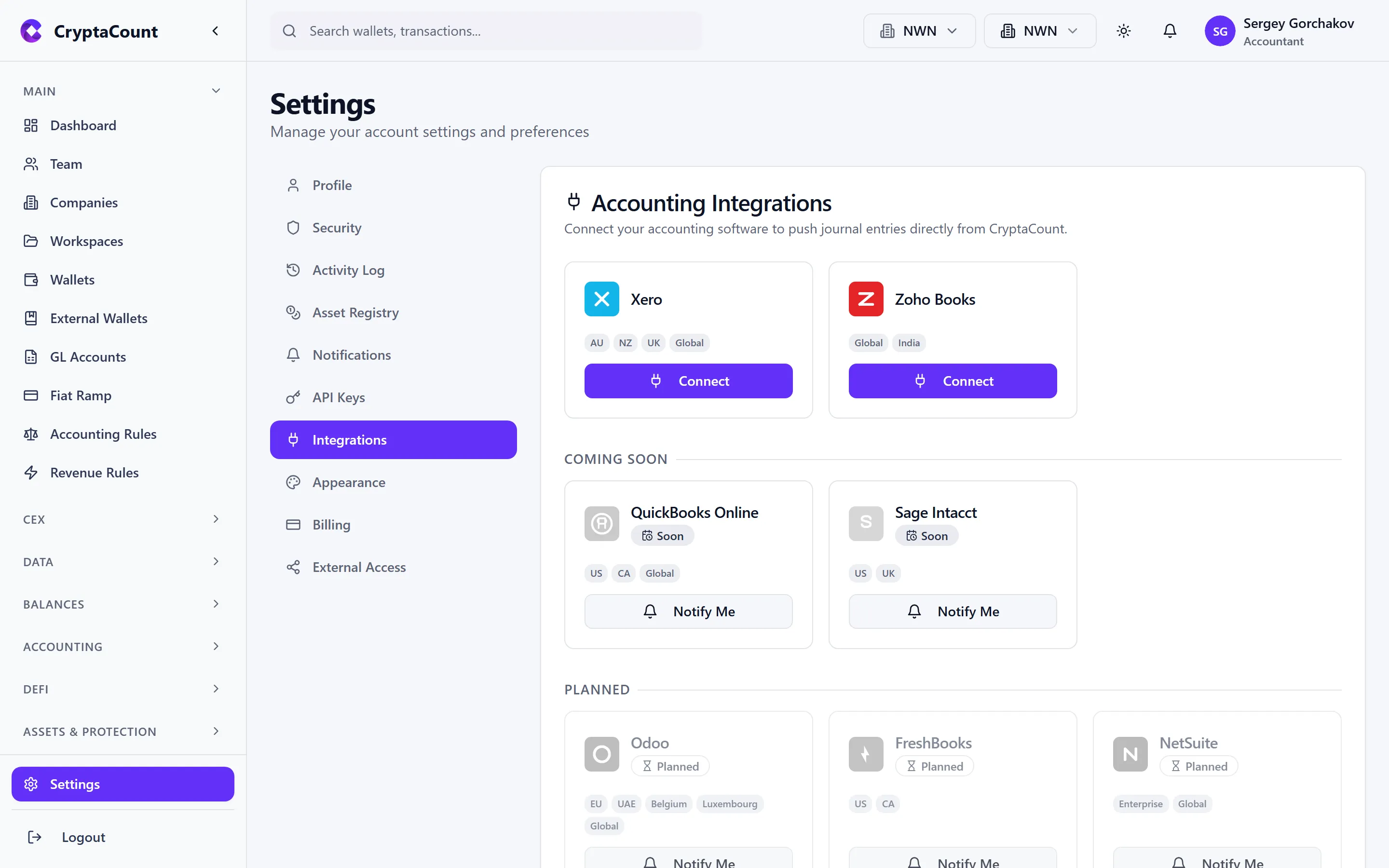
- Click Connect next to the desired platform
- You’ll be redirected to the platform’s authorization screen
- Authorize CryptaCount to access your accounting data
- Select which organization/company to connect (if applicable)
- Done — the integration is active
What Accounting Integrations Do
Section titled “What Accounting Integrations Do”Once connected, you can:
- Push journal entries — Send generated journal entries directly to your general ledger
- Sync chart of accounts — Import your existing chart of accounts
- Reconcile — Compare CryptaCount’s data against your existing general ledger
- Disconnect — Revoke access without deleting data
Zoho Export Support
Section titled “Zoho Export Support”For Zoho Books users, dedicated export functionality under Exports → Zoho provides:
- CSV exports formatted for Zoho Books import
- Account mapping between CryptaCount and Zoho chart of accounts
CEX Connections
Section titled “CEX Connections”Centralized exchange connections under CEX in the sidebar import trade data from major exchanges:
| Sidebar Label | Purpose |
|---|---|
| CEX | CEX account management — connect and manage exchange connections |
| CEX Transactions | View CEX transactions — trades, deposits, withdrawals |
| CEX Import | Import CEX data — via API, CSV, XLS, PDF, or generic import |
| CEX GL Mappings | Map CEX transaction types to GL accounts |
| CEX Transfer Matching | Match CEX transfers with on-chain transactions |
Setting Up a CEX Connection
Section titled “Setting Up a CEX Connection”- Go to CEX in the sidebar
- Click Add Exchange and select your exchange
- API connection: Generate a read-only API key on the exchange and enter it in CryptaCount
- CSV import: Upload trade history exports from the exchange
- Start sync
CEX Import Options
Section titled “CEX Import Options”The import tool supports multiple methods:
- Exchange-specific API — Direct integration per exchange
- Exchange-specific CSV — Pre-formatted CSV templates per exchange
- Generic CSV — Flexible CSV import with column mapping
- XLS import — Excel file import
- PDF import — Statement PDF parsing
- Preview — Review imported data before committing
CEX GL Mappings
Section titled “CEX GL Mappings”Configure under CEX GL Mappings how CEX transactions map to your chart of accounts:
- Set default GL accounts per transaction type
- Override mappings for specific exchanges
- Automatically post CEX transactions as journal entries
Fiat Ramp Tracking
Section titled “Fiat Ramp Tracking”Fiat on/off ramp tracking under Fiat Ramp in the sidebar:
- Track fiat deposits and withdrawals through crypto exchanges
- Manual entry for OTC transactions
- Match unreconciled fiat movements with on-chain transactions
Disconnecting
Section titled “Disconnecting”To disconnect an integration, navigate to Settings → Integrations, click the connected platform, and select Disconnect. This revokes CryptaCount’s access token. No data is deleted from either platform.