

Exports
Exports
Section titled “Exports”CryptaCount exports accounting data in multiple formats for use in external systems, audit documentation, and regulatory filings. The exports module under Exports in the sidebar is the central hub for generating and downloading all exportable data.
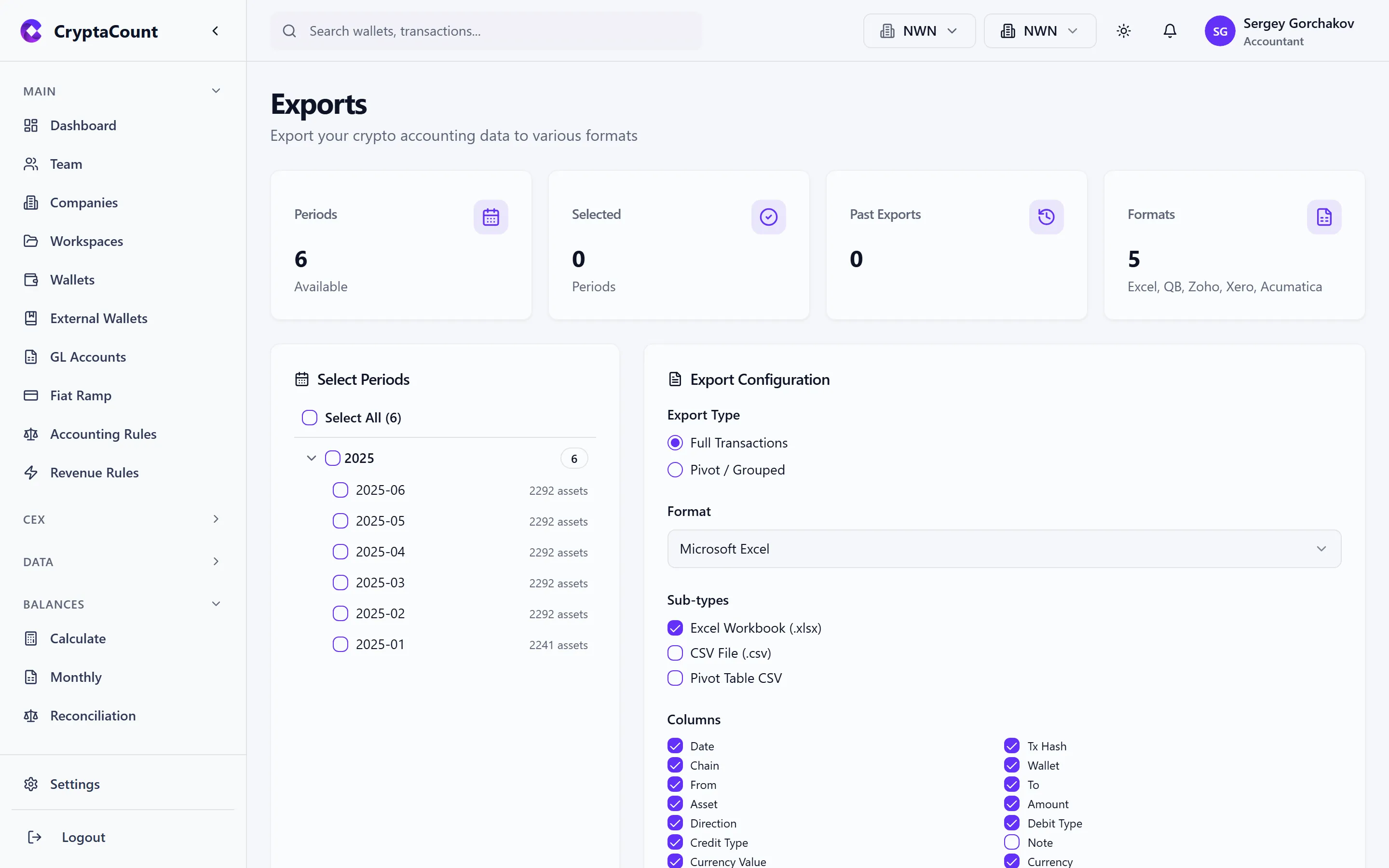
Generating an Export
Section titled “Generating an Export”To create a new export:
- Navigate to Exports
- Select the export type — the data set to export
- Configure parameters — date range, wallets, assets, and other filters depending on the export type
- Choose the format — CSV, Excel, or PDF
- Click Generate
Exports run in the background. Large exports (covering many transactions or long date ranges) may take a few minutes to generate. The status indicator shows progress, and completed exports appear in the export history.
Export Types
Section titled “Export Types”Transaction Data
Section titled “Transaction Data”Export raw or classified transaction data:
- All transactions for a date range
- Filtered by wallet, chain, asset, or transaction type
- Includes transaction hash, date, type, amount, FMV, cost basis, and classification details
Balance Data
Section titled “Balance Data”Export balance snapshots:
- Monthly or as-of-date balances
- Per-asset quantities, cost basis, and fair market value
- GL account assignments
Journal Entries
Section titled “Journal Entries”Export the complete journal entry record:
- Double-entry journal lines with debit/credit amounts
- GL account codes and names
- Transaction references and posting dates
- Hash chain verification data
Financial Reports
Section titled “Financial Reports”Export formatted financial statements:
- Trial Balance
- Balance Sheet
- Income Statement
- General Ledger
- Cash Flow Statement
Financial report exports include proper formatting with headers, subtotals, and totals.
Rollforward
Section titled “Rollforward”Export the five-column rollforward:
- Opening balance, additions, disposals, revaluation, closing balance
- Per-asset detail with GL account breakdown
Reconciliation
Section titled “Reconciliation”Export reconciliation reports:
- Check results and findings
- Resolution status and recommendations
Export Formats
Section titled “Export Formats”Plain comma-separated values. Best for:
- Importing into spreadsheet applications
- Feeding into external data pipelines
- Quick data analysis
CSV exports use UTF-8 encoding with headers in the first row.
Excel (XLSX)
Section titled “Excel (XLSX)”Formatted Excel workbooks. Best for:
- Sharing with auditors and stakeholders
- Reports that benefit from formatting (bold headers, number formatting, column widths)
- Multi-sheet exports (e.g., annual report with separate sheets per statement)
Excel exports include:
- Formatted column headers
- Proper number and date formatting
- Sheet names matching the report type
- Frozen header rows for scrolling
Formatted PDF documents. Best for:
- Formal report presentation
- Audit documentation that shouldn’t be easily modified
- Reports requiring specific layout (e.g., tax forms)
Zoho Export
Section titled “Zoho Export”CryptaCount provides a dedicated Zoho Books integration export under Exports → Zoho.
Zoho CSV Format
Section titled “Zoho CSV Format”The Zoho export generates CSV files formatted specifically for Zoho Books import:
- Account mappings — Maps CryptaCount GL accounts to Zoho chart of accounts codes
- Journal format — Exports journal entries in Zoho’s expected import format
- Date formatting — Uses Zoho-compatible date formats
Configuring Zoho Mappings
Section titled “Configuring Zoho Mappings”Before exporting to Zoho:
- Navigate to the Zoho export section
- Map your CryptaCount GL accounts to Zoho account codes
- Save the mapping configuration
Once configured, subsequent Zoho exports use the saved mapping automatically. Update the mapping if your Zoho chart of accounts changes.
Export History
Section titled “Export History”The exports page maintains a history of all generated exports:
- Export name — Type and date range
- Format — CSV, Excel, or PDF
- Generated at — Timestamp of when the export was created
- Size — File size
- Status — Generating, Ready, or Expired
Downloading
Section titled “Downloading”Click Download on any completed export to save the file. Exports are available for download for a limited retention period — download promptly after generation.
Regenerating
Section titled “Regenerating”If you need an updated version of a previous export (e.g., after correcting classifications), generate a new export with the same parameters. Previous exports are not modified — each generation creates a new file.