

Centralized Exchange Connections
Centralized Exchange Connections
Section titled “Centralized Exchange Connections”CryptaCount connects to centralized exchanges (CEX) to pull trading history, deposits, withdrawals, and fee data. This data feeds into the same accounting pipeline as on-chain wallet transactions — unified classification, journal generation, and reporting.
CEX Accounts
Section titled “CEX Accounts”Manage connected exchange accounts under CEX in the sidebar.
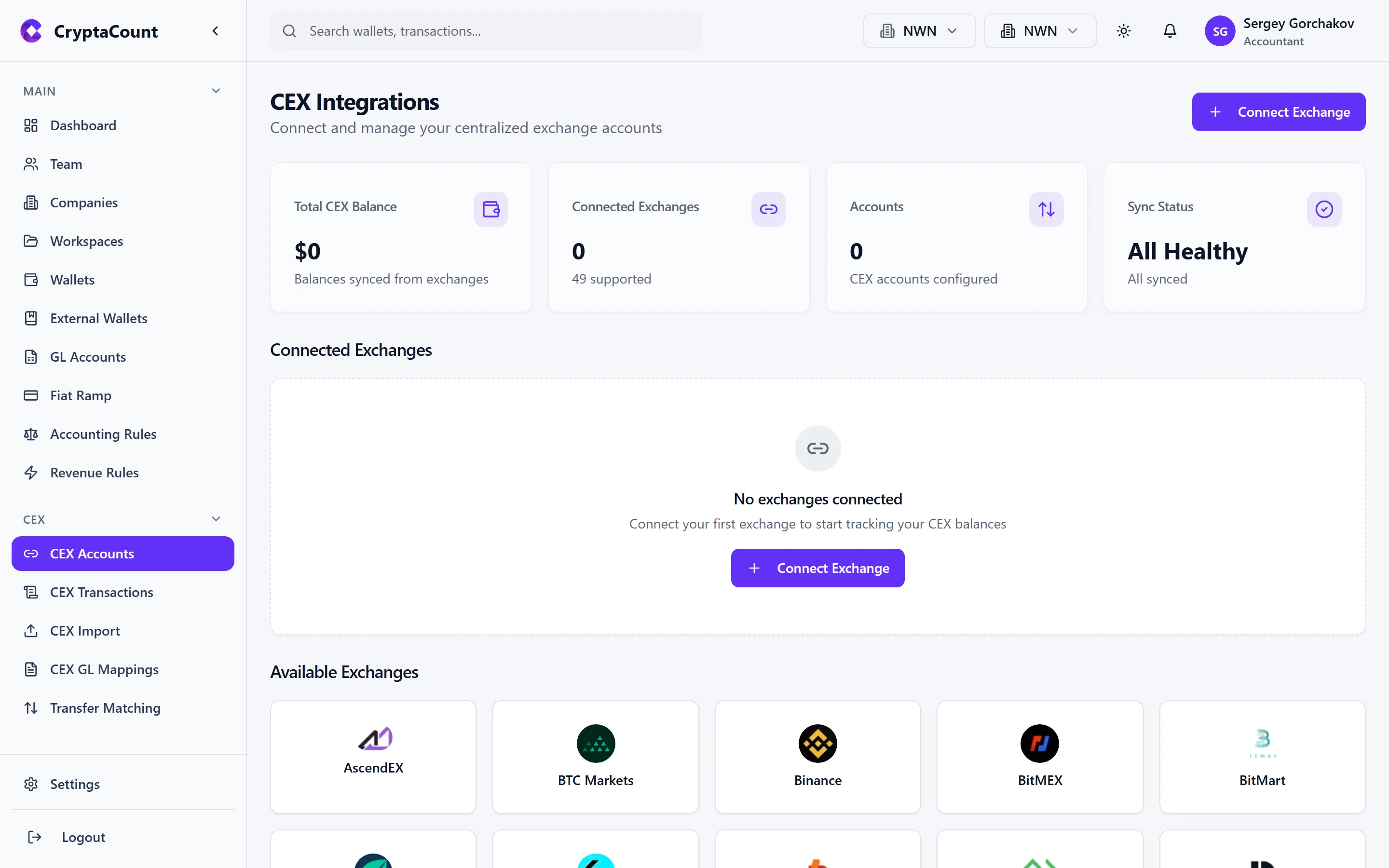
Each account entry shows:
- Exchange name — Binance, Coinbase, Kraken, etc.
- Account label — Your custom name (e.g., “Acme Digital Holdings — Binance Main”)
- Connection status — Connected (API), Import Only (file-based), or Error
- Last sync — Timestamp of the most recent data pull
- Transaction count — Total transactions imported from this account
Adding an Exchange via API
Section titled “Adding an Exchange via API”To connect an exchange through its API:
- Navigate to CEX and click Add Exchange Account
- Select the exchange from the supported list
- Enter a descriptive label for this account
- Provide the API Key and API Secret from your exchange
- Click Connect — CryptaCount validates the credentials and begins the initial sync
API keys are encrypted at rest.
Supported Exchanges
Section titled “Supported Exchanges”CryptaCount supports API connections and CSV/XLS/PDF imports for major exchanges. The exact list of supported exchanges is available in the import interface — select “API Import” to see exchanges with direct API support, or “CSV/XLS Import” for file-based options.
CEX Transactions
Section titled “CEX Transactions”View all imported CEX transactions under CEX Transactions in the sidebar.
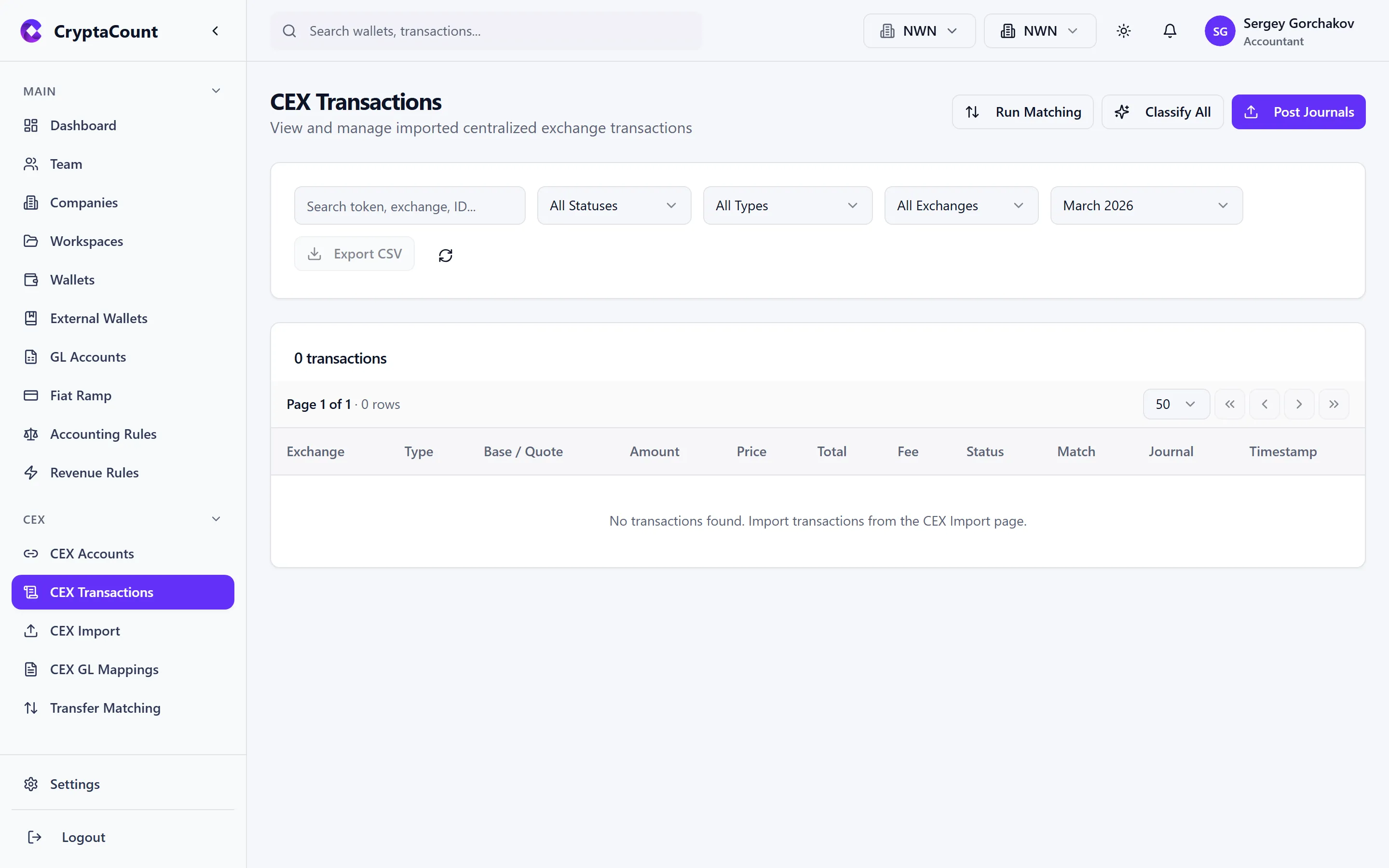
The transaction list shows:
- Date/Time — When the trade or transfer occurred on the exchange
- Exchange — Which exchange account this transaction belongs to
- Type — BUY, SELL, DEPOSIT, WITHDRAWAL, FEE, TRANSFER, etc.
- Asset(s) — The asset pair involved (e.g., BTC/USDT for a trade)
- Amount — Quantity and direction
- FMV — Fair market value at the time of the transaction
- Classification status — Whether this transaction has been classified and mapped
Classifying CEX Transactions
Section titled “Classifying CEX Transactions”CEX transactions follow the same classification pipeline as on-chain transactions. CryptaCount auto-classifies most CEX activity:
- Trades → BUY or SELL based on quote/base pair direction
- Deposits → TRANSFER_IN
- Withdrawals → TRANSFER_OUT
- Fees → FEE or TRADING_FEE
For transactions that need manual review, use the classification controls in the transaction detail to assign the correct type and economic intent.
Posting Journals from CEX Data
Section titled “Posting Journals from CEX Data”Once CEX transactions are classified and GL-mapped, you can post them as journal entries. Use the Post Journals action from the transactions view to generate double-entry journal entries for selected or all classified CEX transactions.
CEX Import
Section titled “CEX Import”Import exchange data under CEX Import in the sidebar. Three import methods are available:
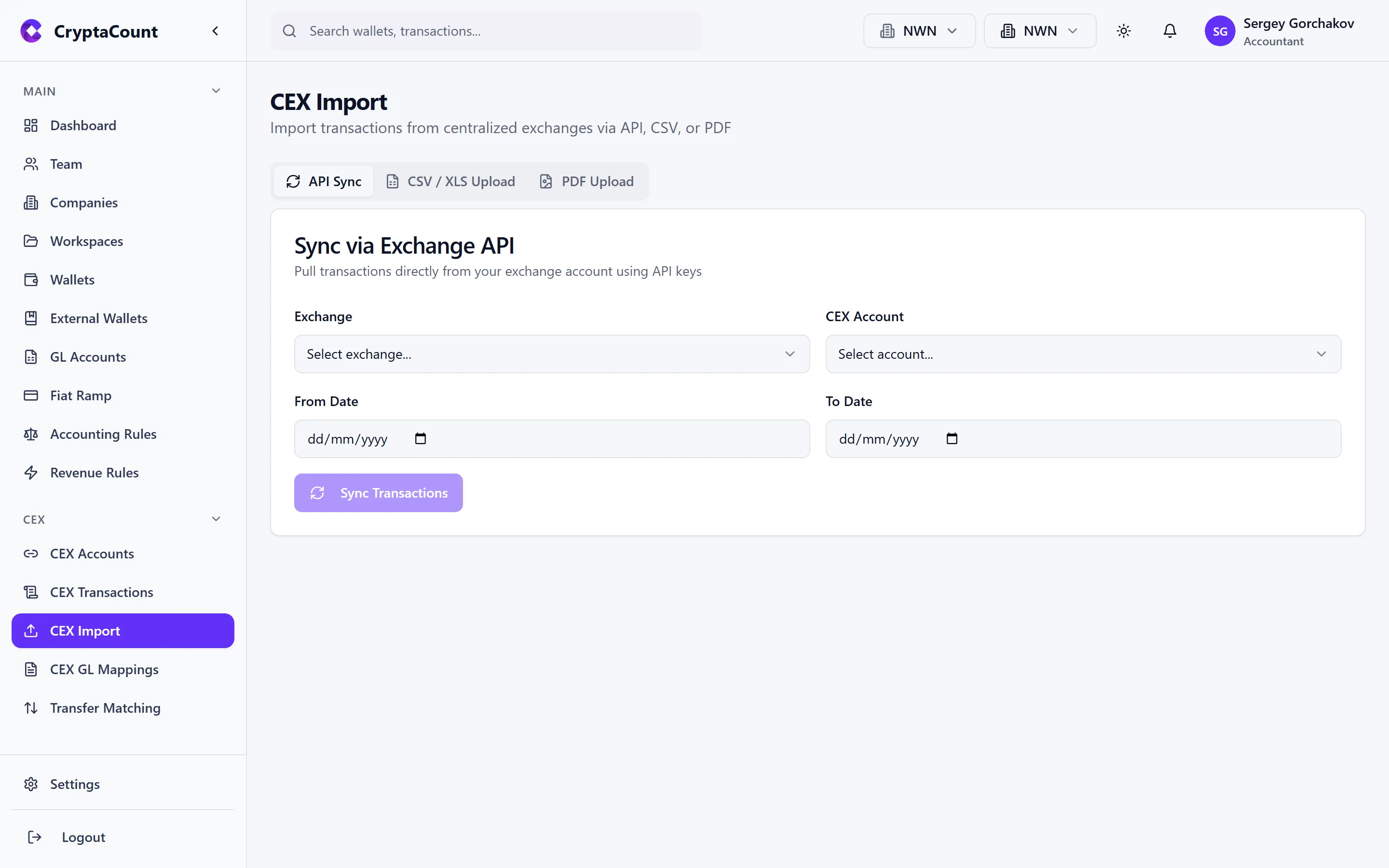
API Import
Section titled “API Import”For exchanges with supported API integrations:
- Select the exchange
- Enter your API credentials
- CryptaCount pulls all available history automatically
The system deduplicates against previously imported data, so re-importing is safe.
CSV Import
Section titled “CSV Import”For exchanges without API support or when you have exported CSV files:
- Select the exchange (to use the correct column mapping template)
- Upload your CSV file
- Preview the parsed data before confirming the import
CryptaCount provides exchange-specific CSV templates — download the template for your exchange to see the expected column format. A generic CSV option is also available for exchanges without a specific template.
XLS / PDF Import
Section titled “XLS / PDF Import”For spreadsheet and PDF statement imports:
- Upload the XLS or PDF file
- CryptaCount parses the document structure
- Preview the extracted transactions
- Confirm the import
Import Preview
Section titled “Import Preview”All import methods show a preview before committing. The preview displays:
- Number of transactions found
- Date range covered
- Potential duplicates flagged
- Any parsing errors or warnings
Review the preview carefully before confirming — once imported, transactions enter the standard accounting pipeline.
CEX GL Mappings
Section titled “CEX GL Mappings”Configure how CEX transaction types map to your chart of accounts under CEX GL Mappings in the sidebar.
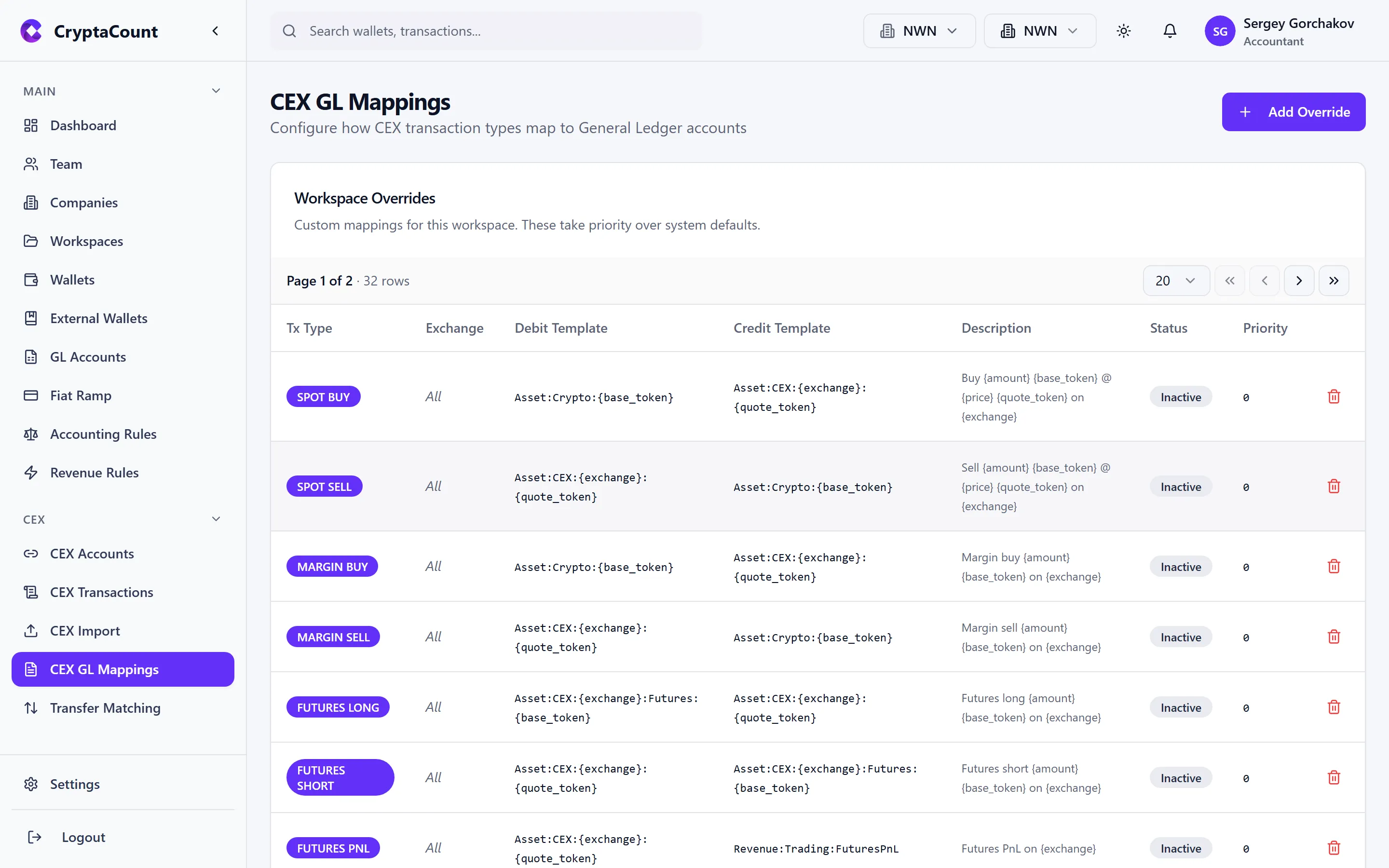
GL mappings control which general ledger accounts receive debit and credit entries when CEX transactions are journalized. For example:
| CEX Transaction Type | Debit Account | Credit Account |
|---|---|---|
| BUY (crypto) | Digital Asset Inventory | Cash / Exchange Balance |
| SELL (crypto) | Cash / Exchange Balance | Digital Asset Inventory |
| DEPOSIT | Exchange Balance | Bank / Source Account |
| WITHDRAWAL | Bank / Destination | Exchange Balance |
| TRADING_FEE | Trading Fee Expense | Exchange Balance |
Default Mappings
Section titled “Default Mappings”CryptaCount provides sensible default GL mappings when you first connect an exchange. These defaults follow standard accounting treatment for crypto trading activity.
Custom Mappings
Section titled “Custom Mappings”To customize mappings for your organization’s chart of accounts:
- Navigate to CEX GL Mappings
- Select the transaction type to configure
- Choose the appropriate debit and credit GL accounts from your chart
- Save — all future and existing unmapped transactions of this type will use the new mapping
CEX Transfer Matching
Section titled “CEX Transfer Matching”Match CEX deposits and withdrawals with corresponding on-chain wallet movements under CEX Transfer Matching in the sidebar.
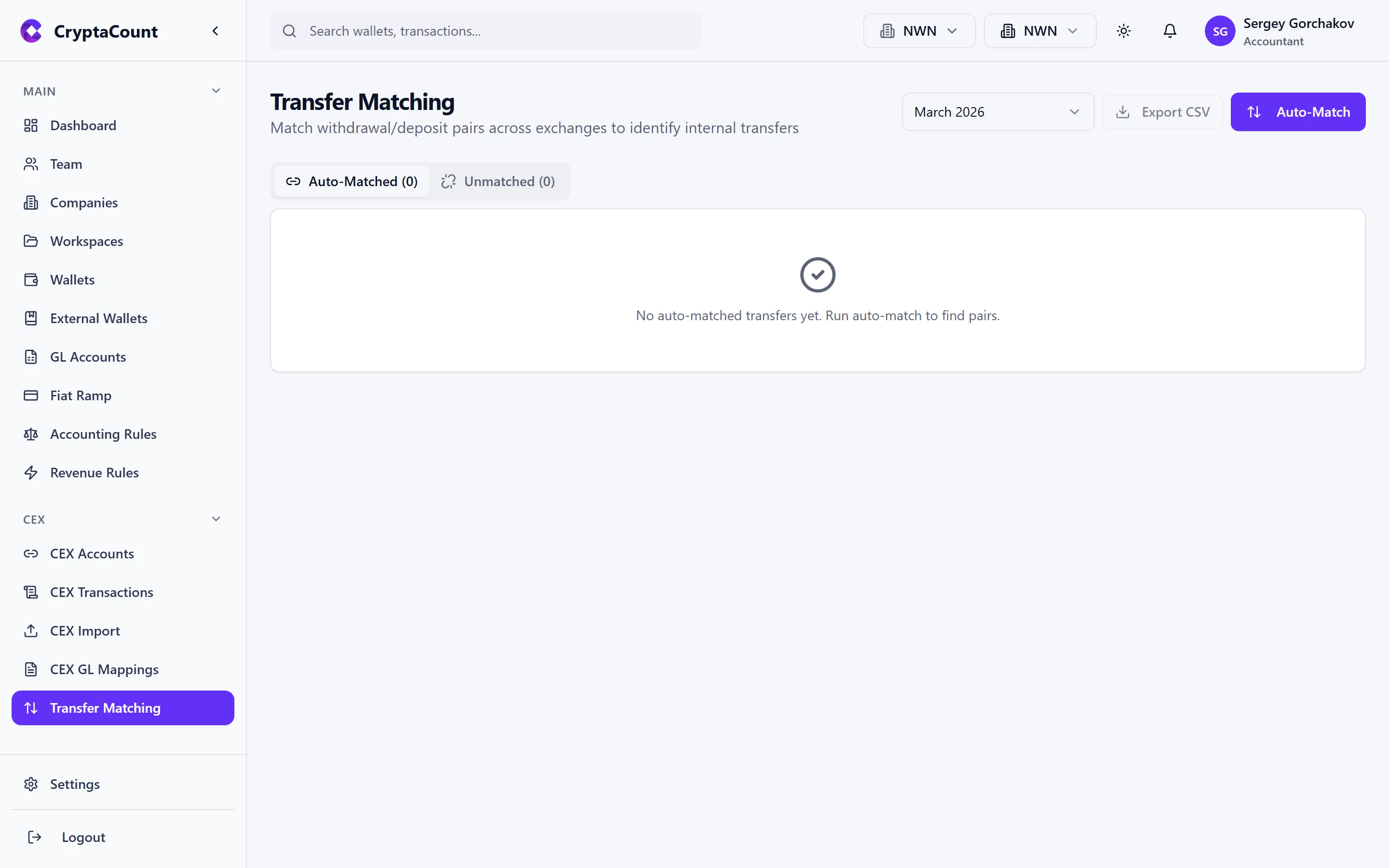
When you deposit crypto to an exchange, the transaction appears in both your on-chain wallet data (as a TRANSFER_OUT) and in the exchange data (as a DEPOSIT). Without matching, these would be double-counted — appearing as both an outgoing transfer and an incoming exchange deposit.
Transfer matching links these pairs so the system recognizes them as a single internal movement.
Automatic Matching
Section titled “Automatic Matching”CryptaCount automatically attempts to match transfers by comparing:
- Amounts — Same asset and quantity (within fee tolerance)
- Timing — Transactions within a reasonable time window
- Addresses — On-chain destination matches known exchange deposit addresses
Automatic matches are flagged with a confidence score.
Manual Matching
Section titled “Manual Matching”For transfers the system cannot auto-match:
- Navigate to the Unmatched tab in CEX Transfer Matching
- Select a CEX deposit or withdrawal
- Find the corresponding on-chain transaction
- Click Match to link them
Common reasons for unmatched transfers:
- The on-chain wallet hasn’t been synced yet
- The exchange deposit address isn’t registered as an external wallet
- Timing differences between exchange timestamps and block confirmation times
- Fee deductions causing slight amount mismatches
Why Matching Matters
Section titled “Why Matching Matters”- Prevents double-counting — The same economic event isn’t recorded twice
- Correct classification — Matched transfers are classified as INTERNAL_TRANSFER rather than separate IN/OUT events
- Clean reconciliation — Unmatched transfers are flagged during reconciliation checks
- Accurate reporting — Financial statements reflect actual economic activity, not duplicated movements