

Balance Calculations & Views
Balance Calculations & Views
Section titled “Balance Calculations & Views”The Balances module computes asset holdings, cost basis, and GL-level balances across all wallets and exchange accounts. Every balance figure in CryptaCount derives from a calculation run — there are no estimated or cached numbers.
Triggering a Calculation
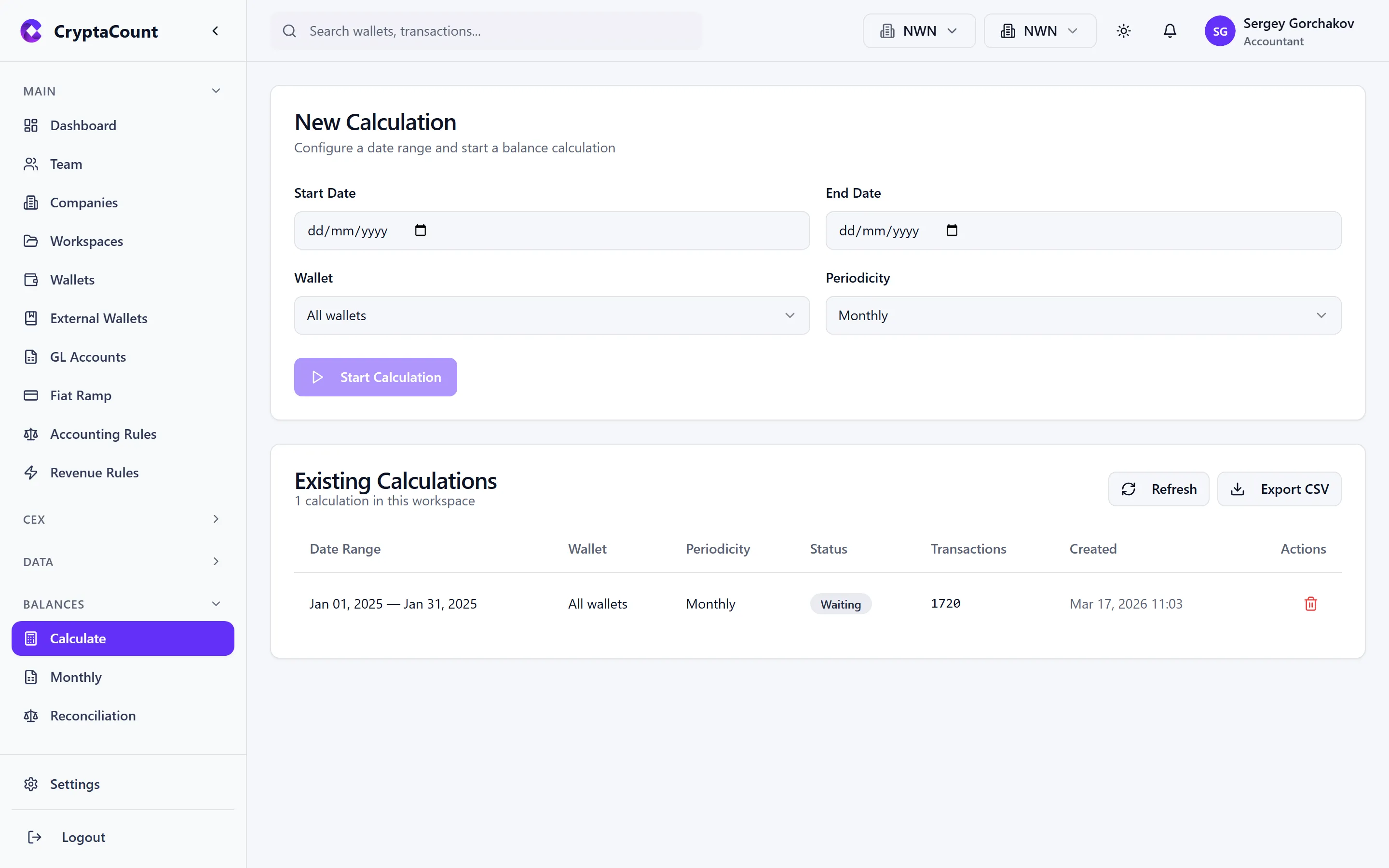
Section titled “Triggering a Calculation”Start a balance calculation under Balances → Calculate.
Configuration Options
Section titled “Configuration Options”Before running a calculation, configure:
- As-of date — The point in time for the balance snapshot (end of month, quarter, or custom date)
- Wallets — All workspace wallets or a selected subset
- Assets — All discovered assets or specific ones
- Cost basis method — FIFO, Weighted Average (WAVG), Fair Market Value (FMV), Net Realizable Value (NRV), LIFO, HIFO, or Specific Identification. Defaults to the workspace accounting method.
- Base currency — Your reporting currency (typically set at workspace level)
Running the Calculation
Section titled “Running the Calculation”Click Calculate to begin. The system:
- Gathers all classified transactions up to the as-of date
- Builds the lot inventory using the selected cost basis method
- Computes per-asset balances (quantity, cost basis, fair market value)
- Aggregates balances by GL account
- Generates the balance record
Balance calculations run in the background. For workspaces with high transaction volumes, calculation may take several minutes. The progress indicator shows the current phase — you can navigate away and return to check status.
Stuck and Failed Calculations
Section titled “Stuck and Failed Calculations”If a calculation stalls or fails:
- Retry — Re-run the calculation with the same parameters
- Diagnose — View diagnostic details including which asset or phase caused the failure
- Cancel — Abort an in-progress calculation
The system also automatically detects and cleans up stuck calculations periodically.
Monthly Balances
Section titled “Monthly Balances”View monthly balance snapshots under Balances → Monthly.
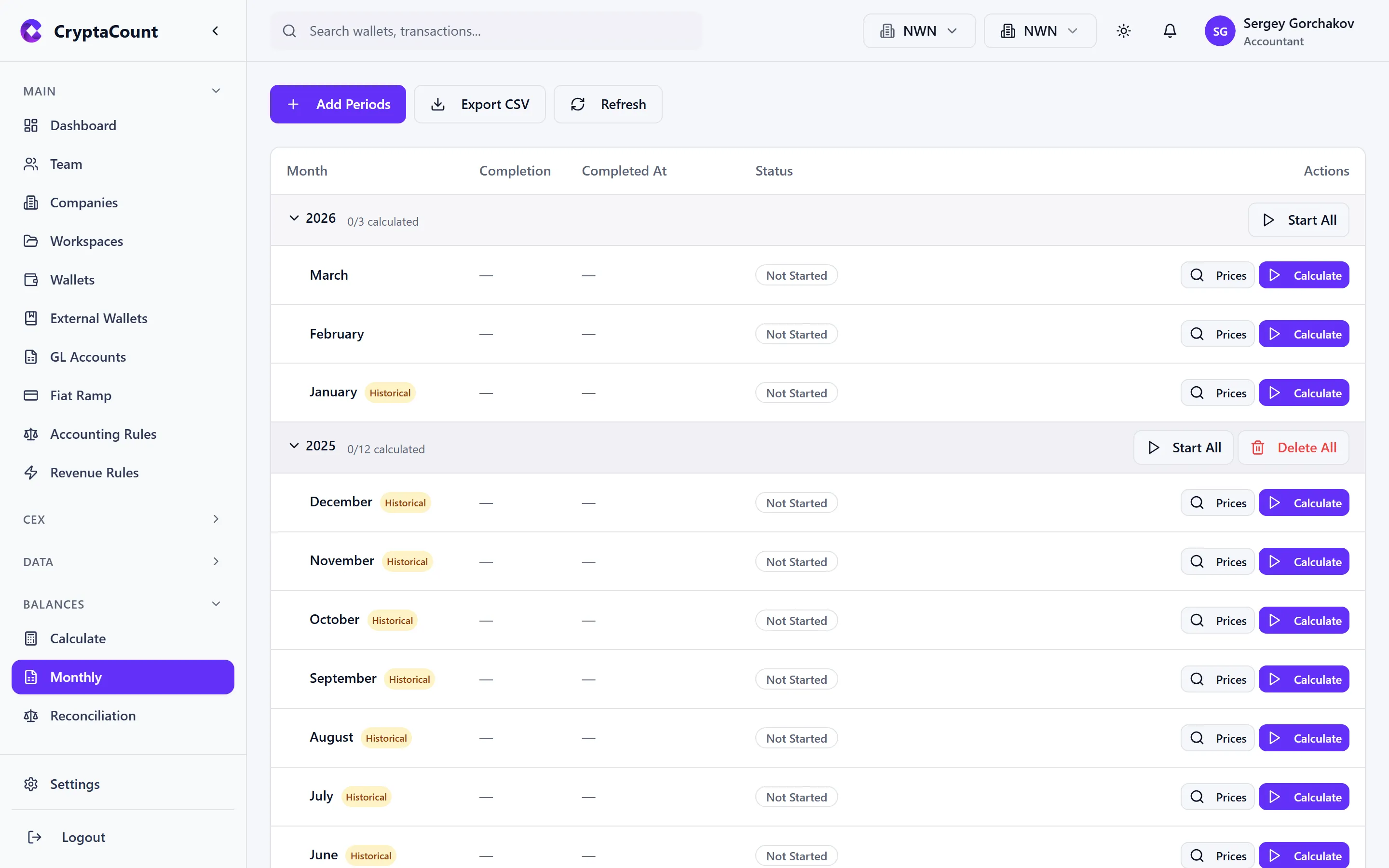
The monthly view shows:
- Asset — Token or coin identifier
- Quantity — Holdings at end of month
- Cost Basis — Total cost basis in your base currency
- Fair Market Value — Current FMV using end-of-period prices
- Unrealized Gain/Loss — Difference between FMV and cost basis
- GL Account — Which ledger account holds this balance
Period-over-Period
Section titled “Period-over-Period”Select multiple months to compare balances across periods. This is useful for identifying:
- Significant position changes
- Cost basis shifts from disposals or rebalancing
- Assets entering or leaving the portfolio
Rollforward
Section titled “Rollforward”The five-column rollforward under Balances → Rollforward shows how each asset balance changed during a period.
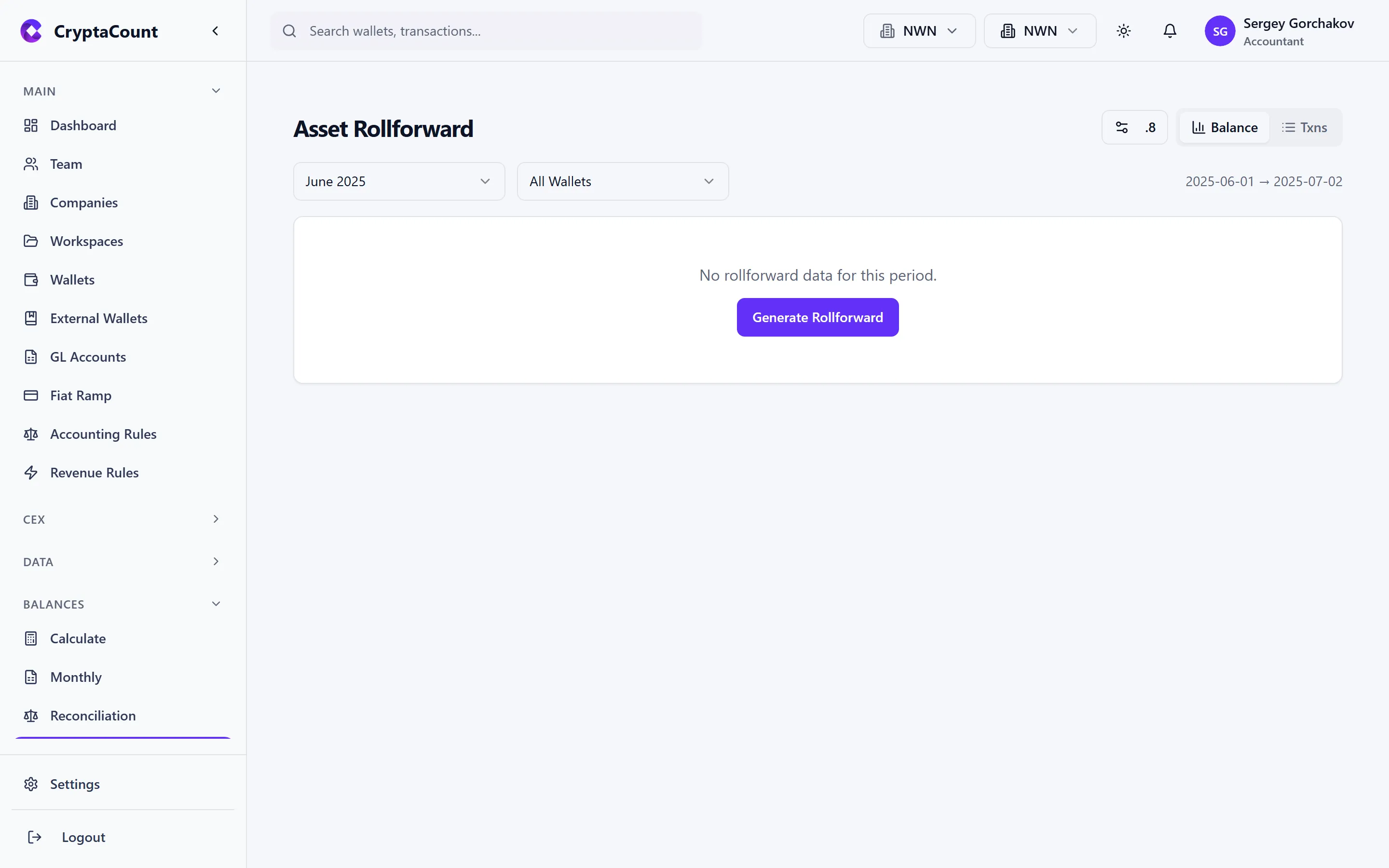
The Five Columns
Section titled “The Five Columns”| Column | Description |
|---|---|
| Opening Balance | Balance at the start of the period |
| Additions | Inflows — purchases, transfers in, staking rewards, airdrops |
| Disposals | Outflows — sales, transfers out, fees, losses |
| Revaluation | Mark-to-market adjustments (FMV method) or impairment |
| Closing Balance | Balance at the end of the period |
The rollforward verifies that:
Opening + Additions − Disposals ± Revaluation = ClosingAny imbalance indicates a data issue — missing transactions, classification errors, or unreconciled transfers.
Drill-Down
Section titled “Drill-Down”Click any cell in the rollforward to see the individual transactions that compose that figure. For example, clicking the “Additions” amount for ETH shows every ETH inflow transaction during the period.
The rollforward supports filtering by:
- Balance ID — View a specific calculation run’s rollforward
- Asset — Focus on one asset
- GL Account — Filter to a specific ledger account
Balance Transactions
Section titled “Balance Transactions”View the transactions underlying any balance under Balances → Transactions.
This view provides a flat list of all transactions that contribute to a balance calculation. It’s the audit trail — every transaction that affected the balance is listed with its:
- Date and transaction hash
- Type (TRANSFER_IN, SWAP, STAKING_REWARD, etc.)
- Asset, amount, and FMV
- Cost basis contribution
- Wallet source
Use this view to verify that a balance figure is correct by inspecting its component transactions.
Lot Viewer
Section titled “Lot Viewer”Examine individual tax lots under Balances → Lots.
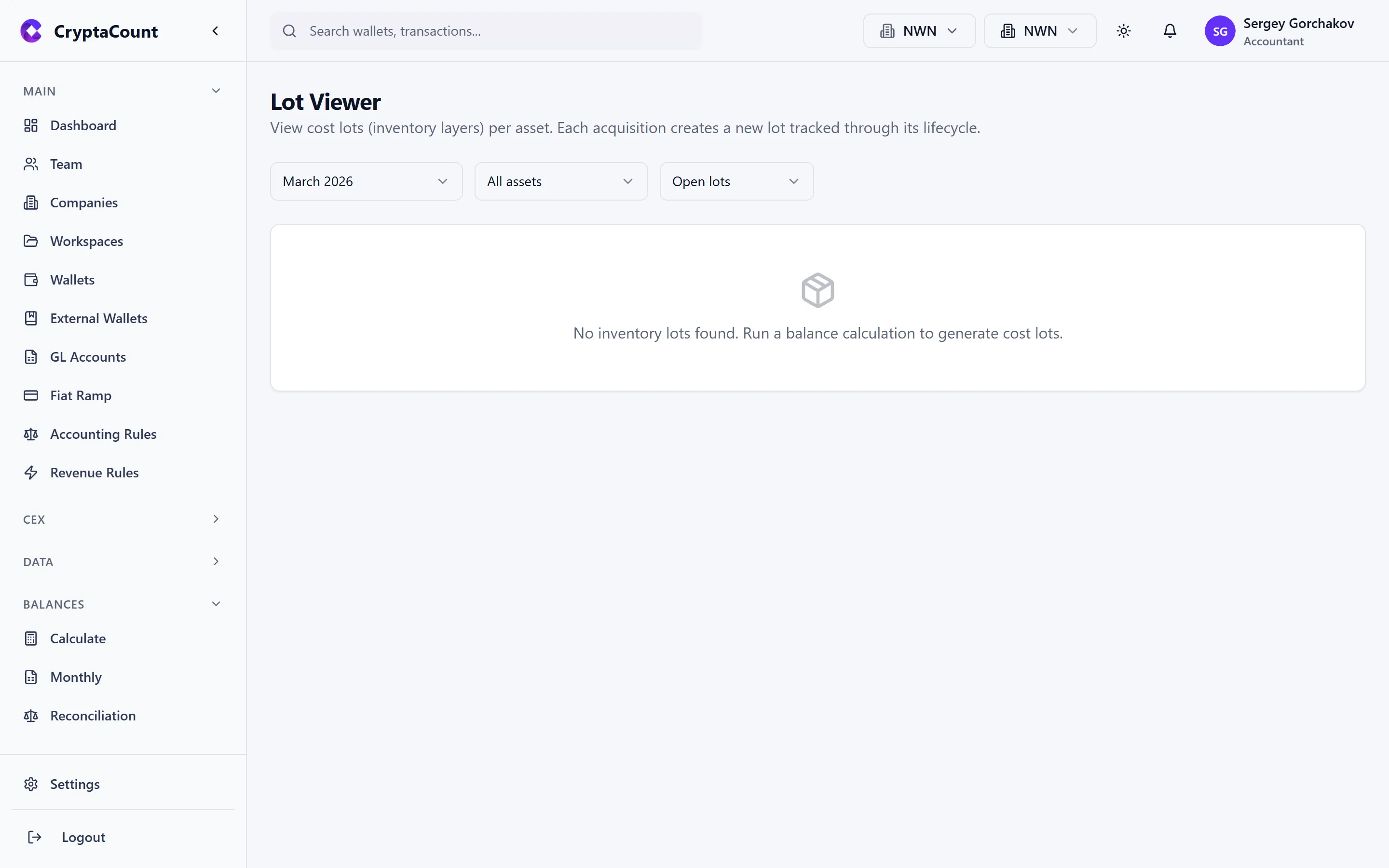
A lot represents a specific acquisition of an asset — when it was acquired, how much, at what cost. The lot viewer shows:
- Acquisition date — When the lot was created
- Asset — Which token or coin
- Quantity — Original lot size and remaining quantity
- Cost per unit — Acquisition cost
- Total cost basis — Quantity × cost per unit
- Current FMV — Fair market value of remaining quantity
- Status — Open (still held), Partially Disposed, or Fully Disposed
- Disposal details — If disposed, which transactions consumed this lot
Lot Selection Methods
Section titled “Lot Selection Methods”The lot viewer reflects whichever cost basis method was used for the balance calculation:
| Method | Lot Selection Order |
|---|---|
| FIFO | First-In, First-Out — oldest lots disposed first |
| LIFO | Last-In, First-Out — newest lots disposed first |
| HIFO | Highest-In, First-Out — highest cost lots disposed first (minimizes gains) |
| WAVG | Weighted average cost — no individual lot tracking |
| Specific ID | Manual lot selection per disposal |
Lot Selections
Section titled “Lot Selections”For Specific Identification method, the lot viewer allows you to:
- View a disposal transaction
- See available lots that could satisfy it
- Select which specific lot(s) to assign to the disposal
- Save the selection — this overrides the automatic lot matching
Scan for External Addresses
Section titled “Scan for External Addresses”Discover untracked external addresses under Balances → Scan External.
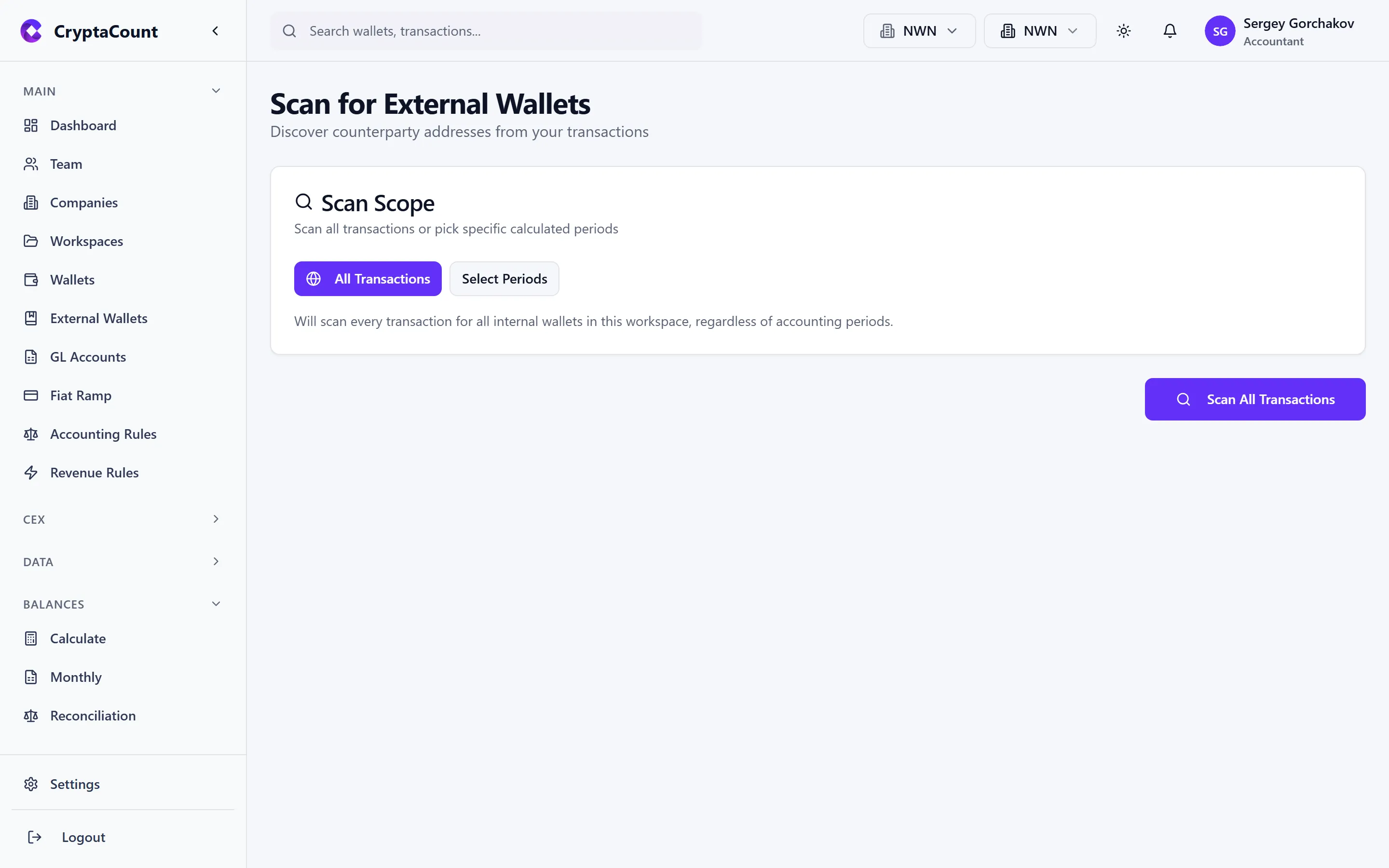
This tool scans your transaction data for addresses that:
- Appear as counterparties in transactions
- Are not registered as internal or external wallets
- May need to be added for complete reconciliation
For each discovered address, the scanner shows:
- The address and its detected chain
- Number of transactions involving this address
- Total value transacted
- Whether it appears to be an exchange, contract, or unknown entity
Taking Action
Section titled “Taking Action”From the scan results, you can:
- Add as External Wallet — Register the address for proper classification
- Ignore — Mark as reviewed and not relevant
- Investigate — View the transactions involving this address before deciding
Reassign GL Accounts
Section titled “Reassign GL Accounts”Bulk-reassign GL accounts for existing balance data under Balances → Reassign GL.
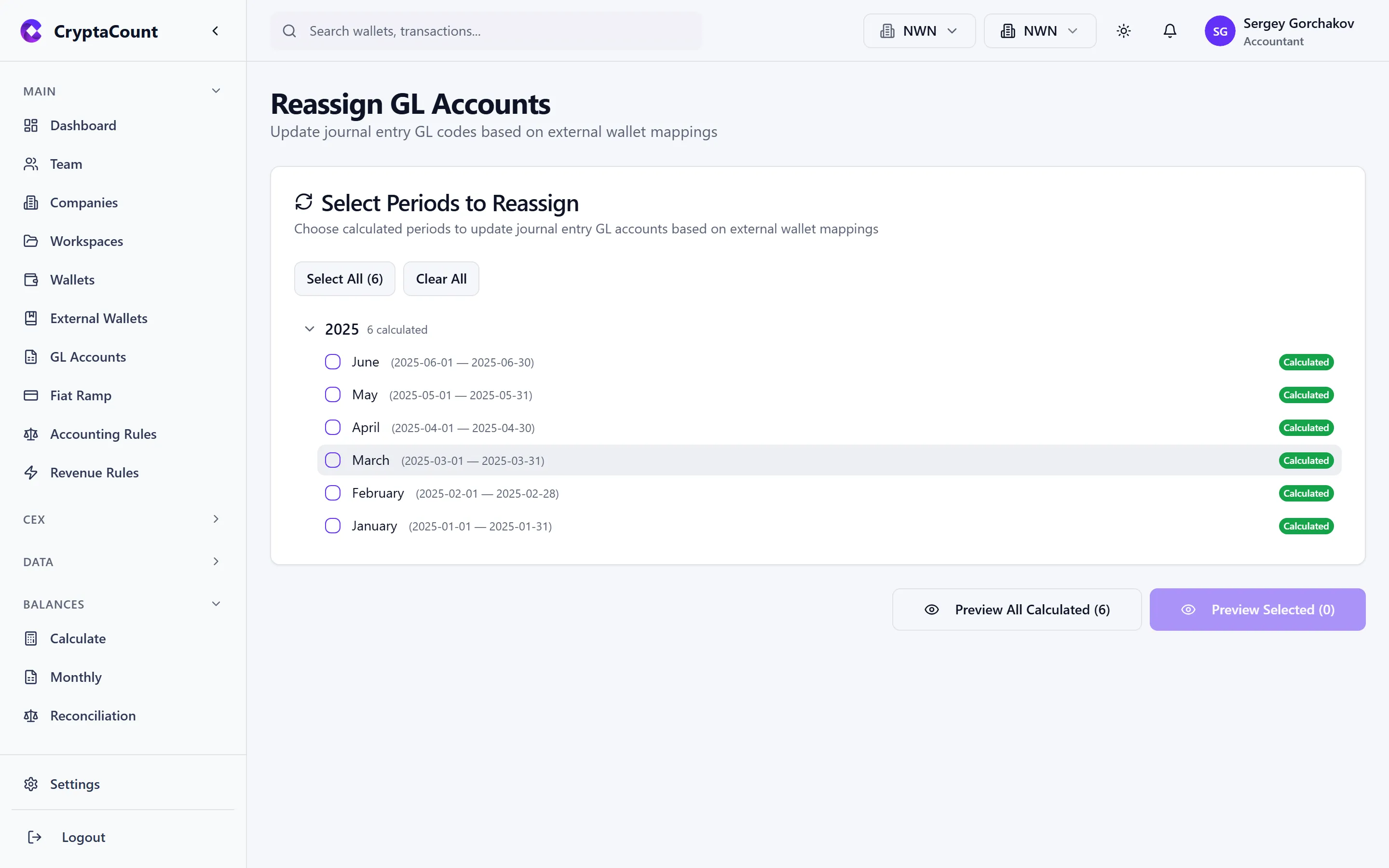
When your chart of accounts changes — merging accounts, splitting accounts, or correcting misassignments — you may need to reassign which GL account holds existing balance and transaction data.
The reassignment tool allows you to:
- Select the source GL account — The account currently holding the data
- Select the target GL account — Where the data should move
- Filter by asset or date range — Optionally narrow the scope
- Preview the change — See how many balances and journal entries will be affected
- Execute — Apply the reassignment