

Manual Adjustments & Audit Attachments
Manual Adjustments & Audit Attachments
Section titled “Manual Adjustments & Audit Attachments”Not every accounting entry originates from a blockchain transaction or CEX trade. Manual adjustments handle accruals, corrections, reclassifications, and other entries that require human judgment. Audit attachments provide the supporting documentation trail. Transaction groups organize related transactions for clearer reporting.
Availability
Section titled “Availability”These features are available on qualifying plans.
Manual Adjustments
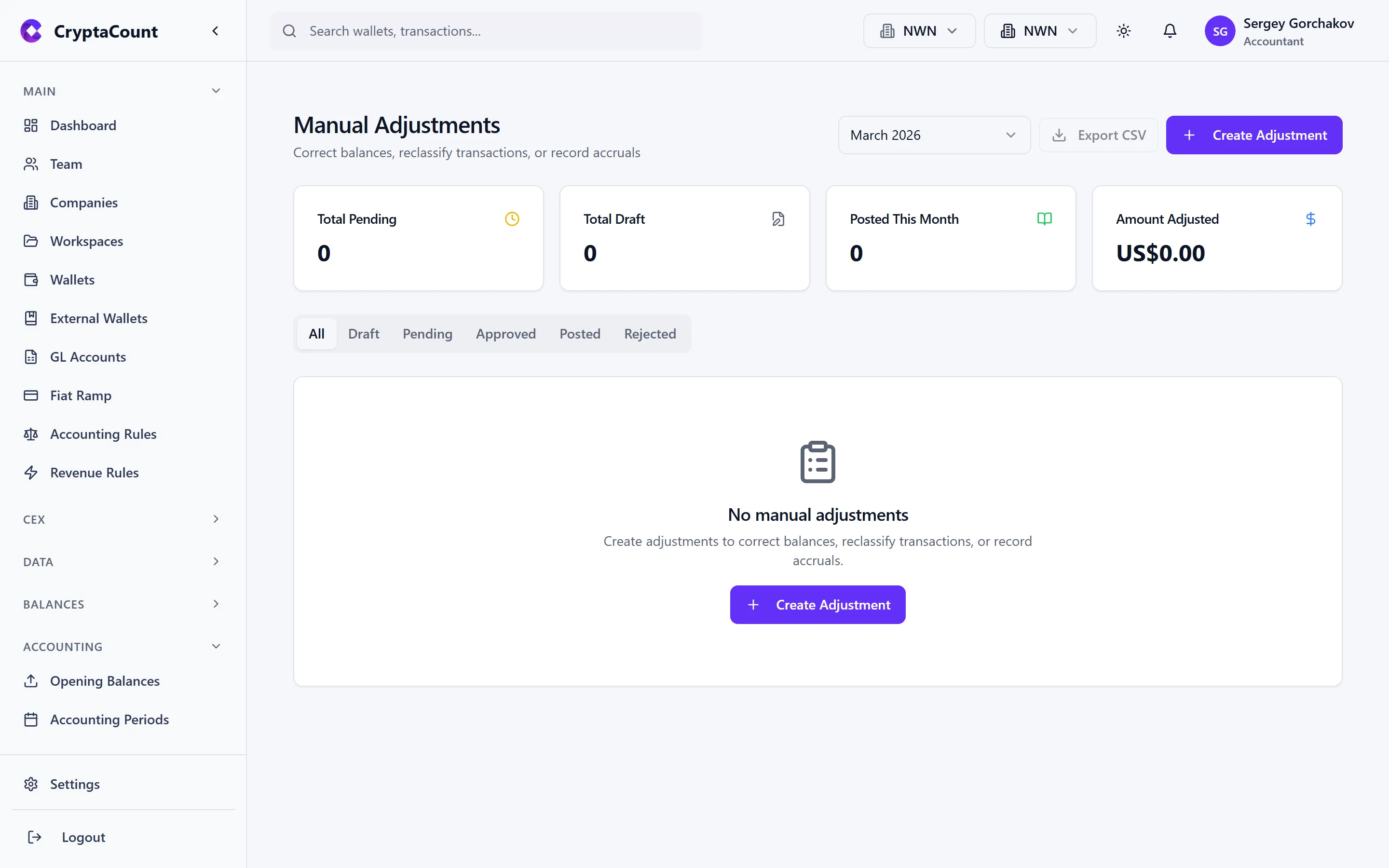
Section titled “Manual Adjustments”Navigate to Manual Adjustments in the sidebar to manage adjustment entries.
Why Manual Adjustments
Section titled “Why Manual Adjustments”Common scenarios requiring manual adjustments:
| Scenario | Example |
|---|---|
| Accruals | Recognize staking rewards earned but not yet claimed |
| Corrections | Fix a misclassified transaction after period close |
| Reclassifications | Move a balance from one GL account to another |
| Provisions | Record a provision for impairment or bad debt |
| Year-end entries | Closing entries, tax provisions, audit adjustments |
| Off-chain events | Record equity changes, OTC trades, or legal settlements |
Creating an Adjustment
Section titled “Creating an Adjustment”- Click New Adjustment
- Fill in the adjustment details:
- Date — The effective date of the adjustment
- Description — Clear narrative explaining the purpose
- Justification — Why this manual entry is necessary (required for audit trail)
- Journal lines — Debit and credit lines with GL accounts and amounts
- Submit for approval
The adjustment is saved in Pending status.
Example: Acme Digital Holdings records accrued staking rewards for December:
| Account | Debit | Credit |
|---|---|---|
| Accrued Staking Receivable | €8,420 | |
| Staking Income — Accrued | €8,420 |
Justification: “Accrue ETH staking rewards earned Dec 15–31, not yet claimed on-chain. 4.2 ETH at €2,005/ETH.”
Approval Workflow
Section titled “Approval Workflow”Manual adjustments follow a maker-checker workflow:
Created (Pending) → Approved → Posted → RejectedPending adjustments:
- Visible to all workspace members with journal permissions
- The list shows a badge count of pending items
Approval:
- A different user (not the creator) reviews the pending adjustment
- Reviews the journal lines, justification, and supporting documents
- Clicks Approve or Reject
- If rejected, provides a reason
Posting:
Once approved, the adjustment can be posted to the ledger:
- Open the approved adjustment
- Click Post
- CryptaCount creates the journal entry with a reference linking back to the adjustment
Adjustment States
Section titled “Adjustment States”| State | Description |
|---|---|
| Pending | Awaiting approval from a different user |
| Approved | Reviewed and approved — ready to post |
| Rejected | Reviewed and rejected with reason |
| Posted | Journal entry created and posted to ledger |
Audit Attachments
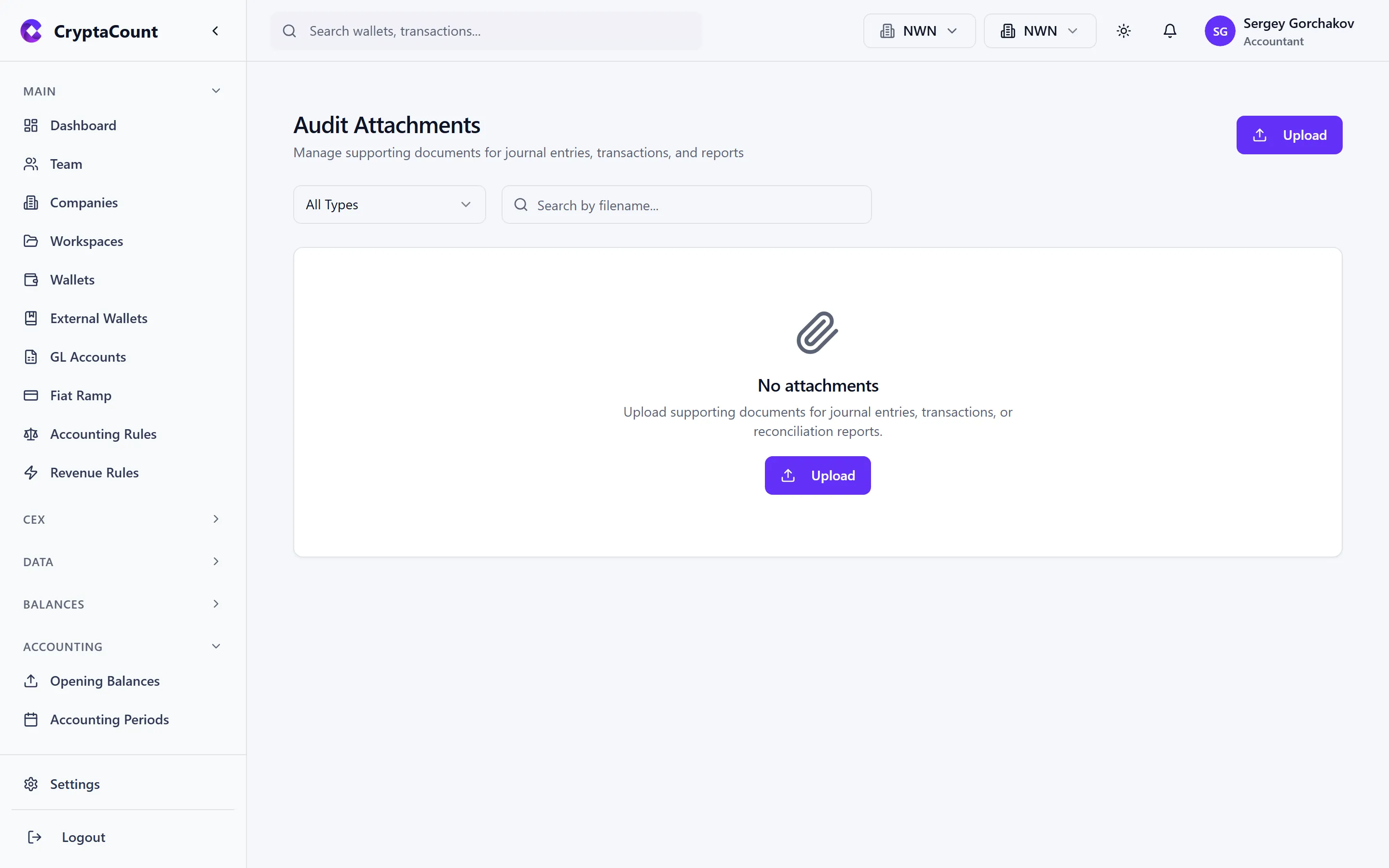
Section titled “Audit Attachments”Navigate to Audit Attachments in the sidebar to manage supporting documents.
Supported Attachments
Section titled “Supported Attachments”Upload any document that supports an accounting entry:
- Invoices and receipts — PDF, image files
- Bank statements — PDF exports from fiat accounts
- Exchange confirmations — Trade confirmations from CEX platforms
- Board resolutions — Approval documents for significant transactions
- Valuations — Third-party valuation reports for fair value assessments
- Contracts — OTC trade agreements, loan agreements
- Correspondence — Emails or letters relevant to transactions
Uploading
Section titled “Uploading”- Click Upload
- Select one or more files
- Assign metadata:
- Related entity — Link to a journal entry, transaction, or period
- Description — Brief description of the document
- Tags — Optional categorization tags
- Upload
Files are stored securely and linked to the specified entity. Auditors can navigate from any journal entry to its supporting attachments.
Accessing Attachments
Section titled “Accessing Attachments”Attachments can be accessed from multiple points:
- Attachment library — Browse all attachments under Audit Attachments
- Journal entry detail — View attachments linked to a specific entry
- Transaction detail — View attachments linked to a transaction
- Period close — Review attachments relevant to the closing period
Download & Export
Section titled “Download & Export”- Download individual attachments
- Bulk download all attachments for a period (useful for external audit)
- Attachment metadata is included in audit trail exports
Transaction Groups
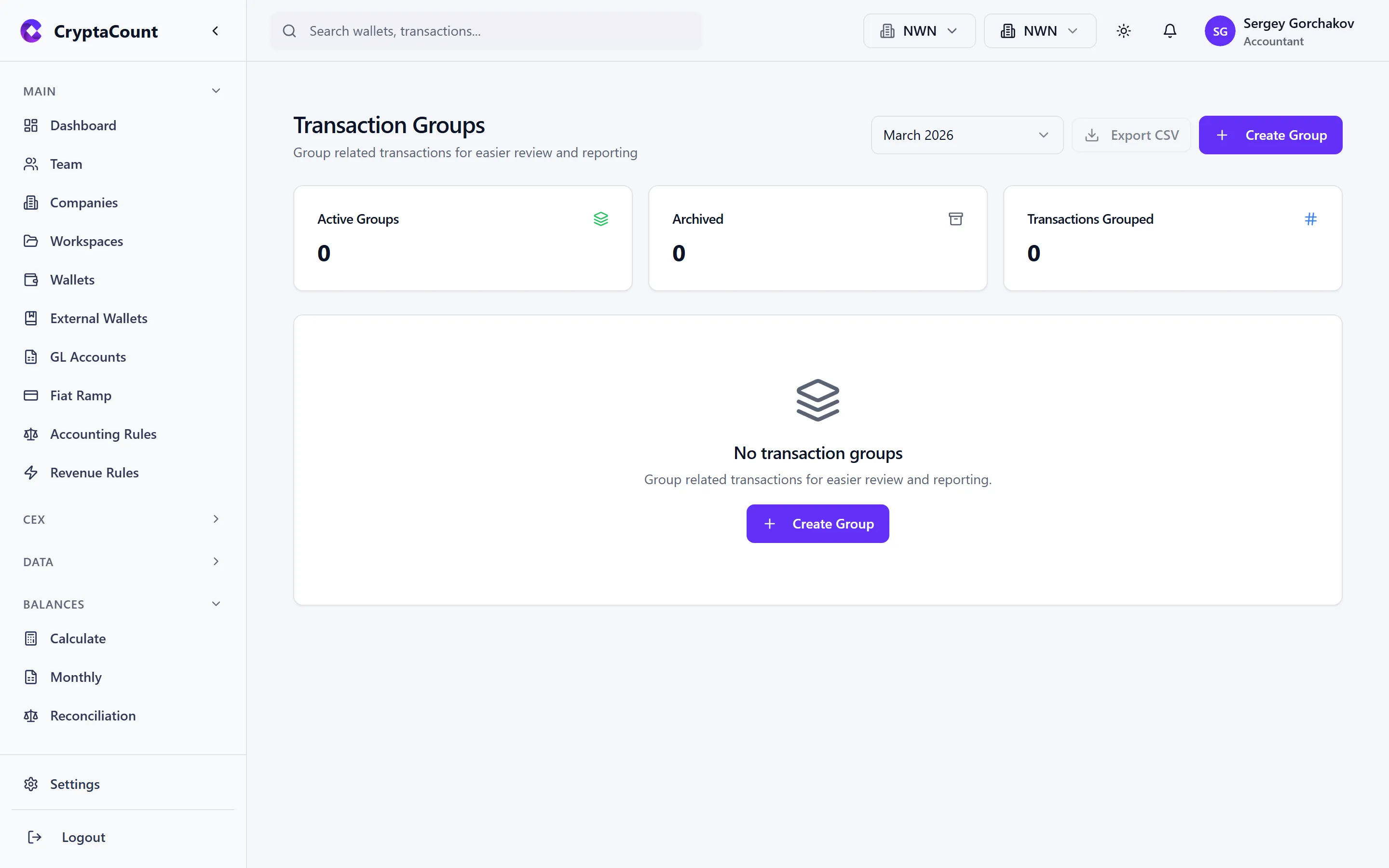
Section titled “Transaction Groups”Navigate to Transaction Groups in the sidebar to organize related transactions.
Why Group Transactions
Section titled “Why Group Transactions”Complex operations often span multiple on-chain transactions. Grouping them provides:
- Clearer reporting — View the full economic event, not individual fragments
- Easier reconciliation — Match grouped transactions against CEX or bank records
- Audit trail — Document why transactions are related
Common Groupings
Section titled “Common Groupings”| Group Type | Example |
|---|---|
| Multi-step DeFi operation | Approve + swap + stake as one economic event |
| Bridge transfer | Bridge out on chain A + bridge in on chain B |
| OTC trade | Multiple wallet transfers constituting one off-exchange deal |
| Treasury rebalance | Series of swaps executed as a single rebalancing decision |
Managing Groups
Section titled “Managing Groups”- Create a group — Give it a name and description
- Add transactions — Select transactions to include in the group
- Expand/Collapse — Toggle between viewing individual transactions and the group summary
- Archive — Archive completed groups to keep the active list clean
Groups display a summary showing:
- Total value of grouped transactions
- Net asset movement
- Date range
- Transaction count