

Your First Report
Your First Report
Section titled “Your First Report”With at least one wallet synced, you’re ready to calculate balances and generate financial reports. CryptaCount has a two-step process: first calculate cost basis and balances, then generate reports from those calculated figures.
Step 1: Calculate Balances
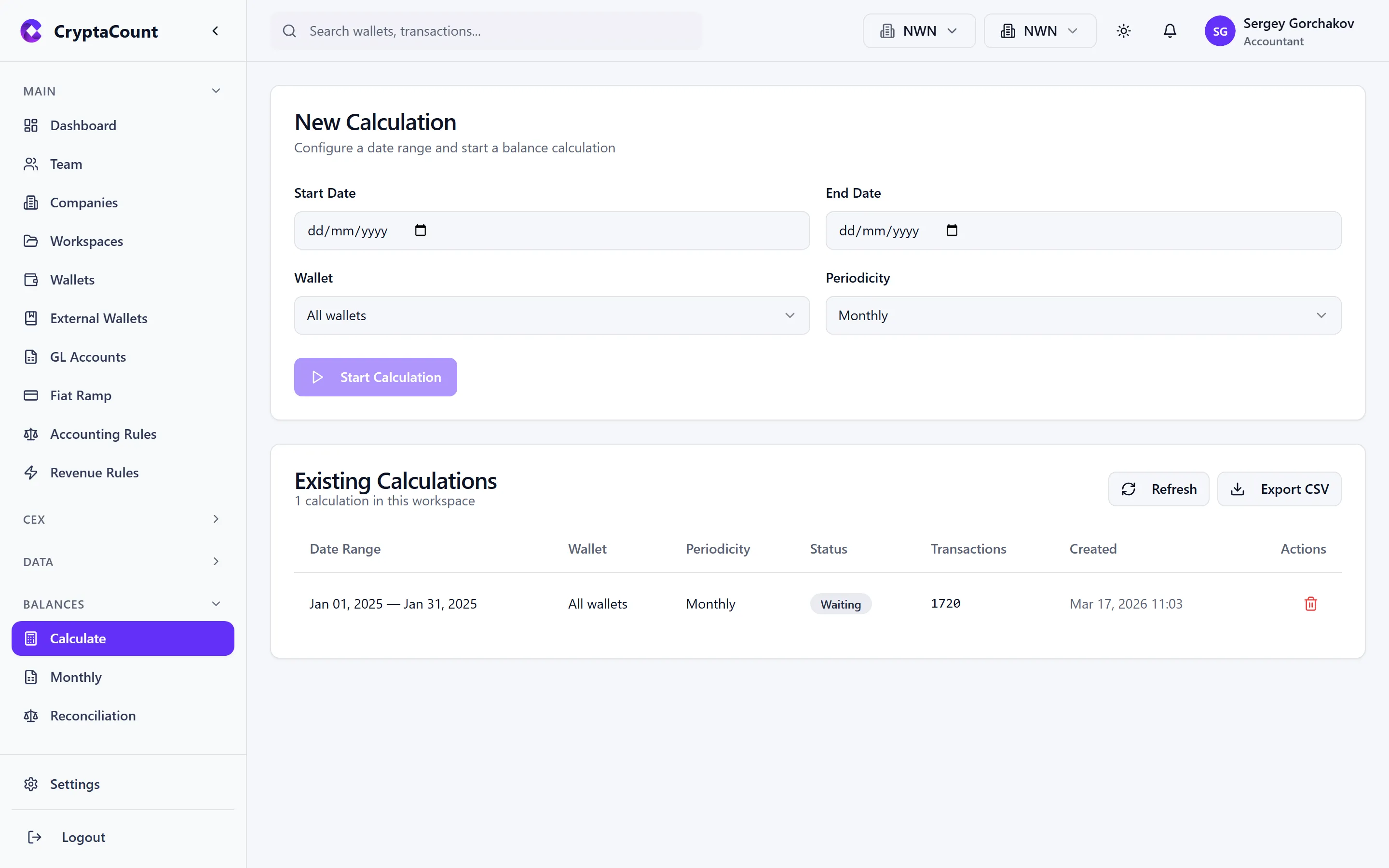
Section titled “Step 1: Calculate Balances”Before generating any report, you need to run a balance calculation. Navigate to Balances → Calculate.
The balance calculation processes all synced transactions and computes:
- Cost basis for every lot under your workspace’s selected cost flow method
- Realized gains and losses on disposals
- Unrealized gains and losses (for fair value / mark-to-market workspaces)
- Balances translated to your reporting currency
Configure the calculation:
- Period — Select the date range (e.g., January 2026, or full year 2025)
- Scope — All wallets or a specific subset
Click Calculate to run. The calculation may take a minute for large transaction sets.
Step 2: Review the Rollforward
Section titled “Step 2: Review the Rollforward”Once balances are calculated, navigate to Balances → Rollforward to see the period reconciliation:
The rollforward shows how balances moved from the start of the period to the end:
- Opening Balance — balance at the start of the period
- + Acquisitions — purchases, transfers in, rewards
- − Disposals — sales, transfers out, fees
- ± Revaluation — fair market value changes, if applicable
- = Closing Balance — balance at the end of the period
The rollforward is the backbone of your accounting — review this before generating financial reports to ensure the numbers make sense.
Step 3: Navigate to Reports
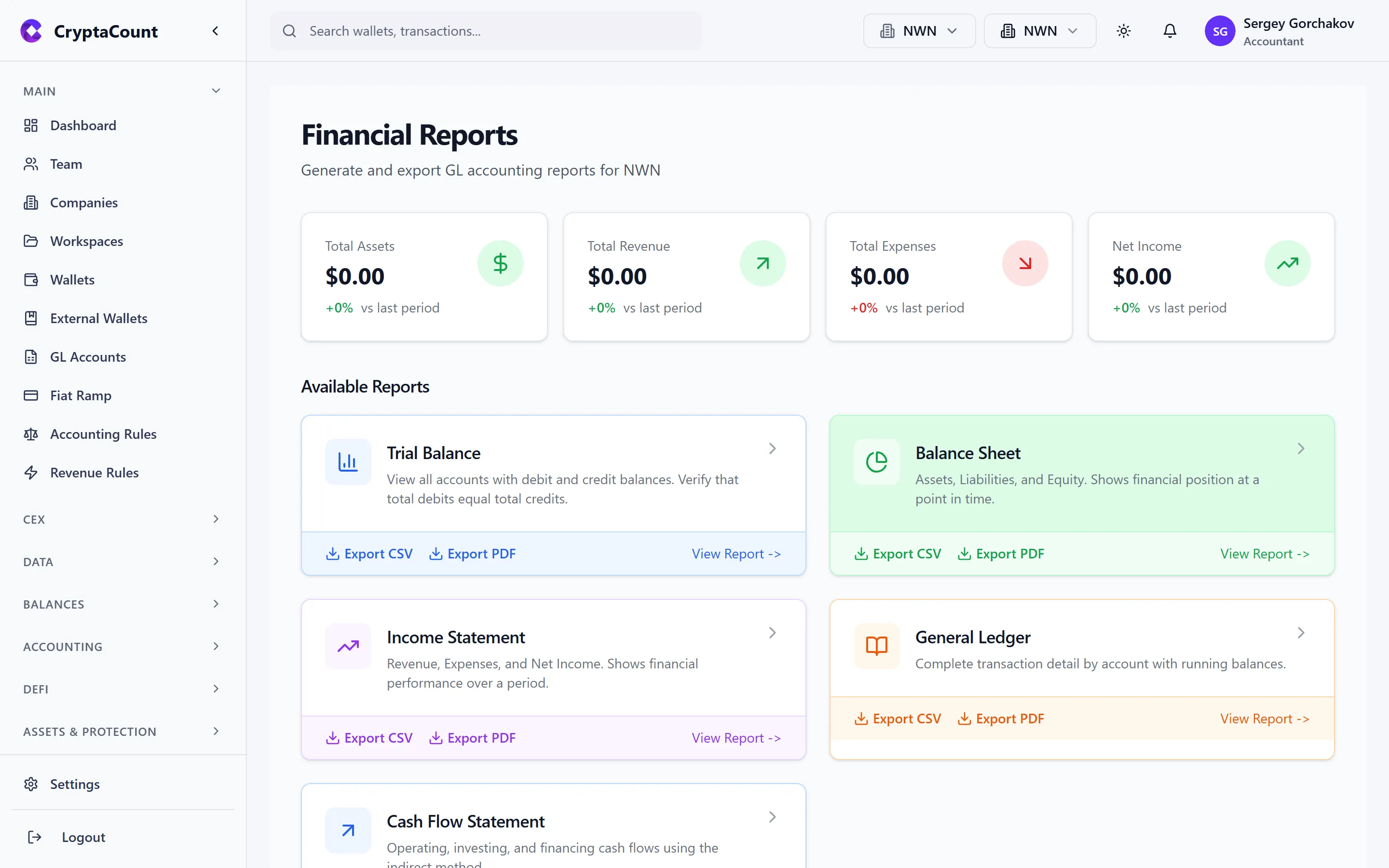
Section titled “Step 3: Navigate to Reports”Go to Reports in the sidebar. The Financial Reports dashboard shows five report types:
| Report | What It Shows |
|---|---|
| General Ledger | Complete transaction detail by account with running balances |
| Trial Balance | All accounts with debit and credit balances — verifies debits equal credits |
| Balance Sheet | Assets, Liabilities, and Equity at a point in time |
| Income Statement | Revenue, Expenses, and Net Income over a period |
| Cash Flow Statement | Operating, investing, and financing cash flows (indirect method) |
Step 4: Generate a Report
Section titled “Step 4: Generate a Report”For your first report, try Trial Balance — it’s the quickest way to verify your accounting is balanced.
Click on the Trial Balance card to open it. Select your reporting period and generate the report. You should see all your GL accounts with their debit and credit balances. If total debits equal total credits, your books are in balance.
Next, try the General Ledger for a transaction-level view of every journal entry posted to each account.
Step 5: Export
Section titled “Step 5: Export”Export any report in your preferred format:
- CSV — For importing into spreadsheets or other tools
- Excel (.xlsx) — Formatted workbook with headers and totals
- PDF — For client delivery or filing
Each report page has an Export button in the top-right corner. The Annual Report Excel export (available from the Reports dashboard) combines all five reports into a single workbook.
Other Balance Views
Section titled “Other Balance Views”Beyond the five financial reports, CryptaCount offers several specialized balance views:
| View | Purpose |
|---|---|
| Monthly Balances | Month-by-month balance summary |
| Balance Transactions | Transaction detail behind each balance |
| Lot Viewer | Individual cost basis lots with acquisition date, cost, and current value |
| Scan External | Compare on-chain balances against calculated book balances |
| Reassign GL | Bulk reassign transactions to different GL accounts |
Access these from the Balances section in the sidebar.
What’s Next
Section titled “What’s Next”Now that you’ve completed the basic workflow (account → workspace → wallet → report), explore:
- Transaction Classification — Review and adjust how transactions are classified
- Accounting Periods — Set up formal period open/close workflow
- Journal Entries — Review auto-generated journals and create manual entries
- Reconciliation — Run on-chain vs. book balance reconciliation checks
- DeFi Transactions — Understand how DeFi events are handled
- Team & Permissions — Invite colleagues and set access levels
- Integrations — Connect to Xero, QuickBooks, Zoho, or other accounting software